
Deep dive: Aggregate questionnaires via Power BI template: Difference between revisions
Marek Rodak (talk | contribs) |
Marek Rodak (talk | contribs) |
||
| (2 intermediate revisions by the same user not shown) | |||
| Line 12: | Line 12: | ||
The template consists mostly of queries, functions, and parameters. Visuals are not included, as the questionnaire data is use-case-specific. | The template consists mostly of queries, functions, and parameters. Visuals are not included, as the questionnaire data is use-case-specific. | ||
===Parameters=== | ===Parameters=== | ||
You have to define the parameters as soon as the template opens. | You have to define the parameters as soon as the template opens.<br> | ||
[[File:PowerBItemplateParameters.png|alt= Power BI template parameters inicialization.]] | |||
; Mandatory parameters: | ; Mandatory parameters: | ||
| Line 28: | Line 29: | ||
*TemplateA is a sample query containing the final pivot step. This query can be duplicated or edited in the advanced editor. | *TemplateA is a sample query containing the final pivot step. This query can be duplicated or edited in the advanced editor. | ||
To | To pivot the data in TemplateA or its clone, you have to specify templateid in Power Query. | ||
#In the top panel click '''Transform data'''.<br>[[File:TransformDataPowerBIButton.png|alt=Transform Data button in Power BI]] | #In the top panel click '''Transform data'''.<br>[[File:TransformDataPowerBIButton.png|alt=Transform Data button in Power BI]] | ||
#Select TemplateA query. | #Select TemplateA query. | ||
#In the Query Settings, under APPLIED STEPS, select the FilterTemplate step.<br>[[File:QuerySettingsPowerBI.png|alt=Query settings in PowerBI]] | #In the Query Settings, under APPLIED STEPS, select the FilterTemplate step.<br>[[File:QuerySettingsPowerBI.png|alt=Query settings in PowerBI]] | ||
#In the Power Query editor, fill in the empty bracket with templateid.<br>[[File:PowerQueryEditor.png|alt= Power Query line editor]] | #In the Power Query editor, fill in the empty bracket with templateid.<br>[[File:PowerQueryEditor.png|alt= Power Query line editor]] | ||
Latest revision as of 13:57, 6 February 2026
| Warning | Work in progress! We are in the process of updating the information on this page. Subject to change. |
In this guide, we will demonstrate a prebuilt Power BI template for deserializing questionnaire answers. Questiannaire answers are inherently stored in the resco_serializedanswers columns in JSON format. To use this data in external reporting tools, we need to deserialize it back into a structured format.
In [link to deep dive], we deserialized JSON manually using Power Query. In this guide, we will use a Power BI template. Power BI templates are pre-built templates that usually include parameterized imports, Power Query, and visualizations. Templates are used as an industry standard for report distribution.
Download Power BI templates
For your convenience, we provide two templates depending on your storage entity:
- questionnaires
- questionnaireanswers
About the template
The template consists mostly of queries, functions, and parameters. Visuals are not included, as the questionnaire data is use-case-specific.
Parameters
You have to define the parameters as soon as the template opens.

- Mandatory parameters
- OrgUrl - clean Environment URL to which you want to connect (no https:// or tailings .../).
If only the OrgUrl param is defined, all questionnaires are queried and deserialised. You can then define a query for each template separately. TemplateA query is an example you can duplicate or edit.
- Optional params
- TemplateID - If you wish to deserialize one specific questionnaire template, paste templateid into this parameter.
- Questions -If you wish to deserialize a specific questions in selected template, you can use this parameter, e.g. model, serialnumber, ... .
Queries
- Questionnaires query contains all questionnaire data as is from the dataverse.
- Answers query contains deserialized and processed answers in the form of records. This query is pre-pivot. That means a final pivot query is necessary to structure the data in the columns: question name, and the rows: question answer format.
- TemplateA is a sample query containing the final pivot step. This query can be duplicated or edited in the advanced editor.
To pivot the data in TemplateA or its clone, you have to specify templateid in Power Query.
- In the top panel click Transform data.

- Select TemplateA query.
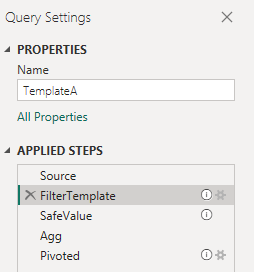
- In the Query Settings, under APPLIED STEPS, select the FilterTemplate step.
- In the Power Query editor, fill in the empty bracket with templateid.



