
Dynamics


 |

|
Microsoft Dynamics is a line of enterprise resource planning (ERP) and customer relationship management (CRM) software applications.
Dynamics can benefit from tight integration with Resco platform, gaining access to powerful and fully customizable mobile applications that can work with the data of your Dynamics organization, even offline.
Integration schemas


Getting started
To start using Resco for Dynamics, you have to add Woodford to your Dynamics server. See Installing Woodford on Dynamics for further instructions.
To verify that the Resco solution was installed successfully, and to manage the solution, go to Settings > Solutions and search for "Woodford".

Resco functions on Dynamics
By installing Woodford, you can now access additional tools from your Dynamics server. In the list of published apps, search for Resco Suite:

You can then access the different Resco features:

- Woodford: Customization and configuration of Resco mobile application directly from your web browser.
- Designer: Questionnaire building and customization tool.
- Automatic Dashboard: Visualize and evaluate data collected from the questionnaires.
- Scheduler: Assign appointments to users.
- Results Viewer
- Location Tracking: View and analyze the position of mobile users.
- Mobile Reports: Create and manage your custom mobile reports.
- Mobile Auditing Map: View transactions across records and users on a map.
- Mobile Auditing Records: View a chronological list of transactions across records and users.
- Sync Dashboard: Monitor synchronization details of your users and devices.
App projects
App projects are customized versions of Resco mobile application dedicated to a particular set of users. Or more precisely, the application remains the same, but each project may have a different set of data and functions available. For example, your mobile sales team may need easy access for showcasing products and creating up new orders, field technicians may need instructions that guide them through the process of a maintenance inspection, and their managers can be interested in seeing the aggregated data or monitor the location of their staff on a map in real time.
Resco on Dynamics comes with a set of default project templates designed for concrete scenarios (for example, mobile sales or inspections) and these can be further customized using the Woodford tool, or you can design your own app project from scratch.
CDS
Resco is also compatible with Microsoft Dataverse, formerly known as Project Oakdale, formerly known as Microsoft Dataflex, formerly known as Common Data Service (CDS). To make the process of creating a mobile experience for CDS even easier, we also created a default app project for CDS organizations where there are no Sales entities present.
Mobile apps
Resco offers several mobile apps that understand app projects and allow you to work with your Dynamics data. To get started, download any of the app and connect to Dynamics. If you're not sure which app to download, get the classic Resco Mobile CRM.
OAuth2 authentication
For security concerns, Microsoft is deprecating older authentication methods in favor of multi-factor authentication.[1]
Before you can use the OAuth2 authentication method to connect Resco Mobile CRM with Dynamics 365/CRM Online, the app must first be added to the Microsoft Azure Active Directory. Azure Active Directory is used to verify that the application is permitted to access the business data stored in the Dynamics 365/CRM Online tenant. To grant a global consent for all Resco Mobile CRM users to access the data, use the following link. However, you need to be a Global Administrator of your tenant to issue a global consent. It’s not enough to have only a System Administrator role in Dynamics 365/CRM Online.
See this blog post for more information. Blog
External projects, location tracking
The deprecations of Microsoft impact how external projects and location tracking authenticate. Instead of legacy login using via WS-Trust, all customers must switch to OAuth using ROPC flow.
However, in order to use OAuth, users must grant their consent. There are two types of consent:
- individual consent for a particular user
- admin consent (organization-wide)
For external projects and location services, individual user consent is sufficient.
- For external projects, consent is required for the common user account used for authentication and licensing.
- For location tracking, consent is required for the account used when you register your organization for location tracking.
Consents can be further limited by scopes. In these cases, consent is only required to access Dynamics. The scope is https://<hostname>/user_impersonation, for example, https://resco.crm4.dynamics.com/user_impersonation.
There are several ways how consent can be granted:
- You can synchronize your Resco Mobile CRM app with this account. However, this will grant consent with more scopes than required for the external users or location tracking scenarios.
- A simpler way is to open the following link in a web browser, log in, and grant consent in that way. Go to
https://login.microsoftonline.com/common/oauth2/v2.0/authorize?client_id=a116bf70-75fe-41c2-9f9f-7f3d0faff4bb&response_type=code&redirect_uri=https%3A%2F%2Flogin.microsoftonline.com%2Fcommon%2Foauth2%2Fnativeclient&scope=https%3A%2F%2F<hostname>%2Fuser_impersonation&prompt=consent. Make sure to replace the <hostname> with your Dynamics hostname. Some organizations don't allow individual user consent; in that case, you must log in as a global admin and grant consent on behalf of your organization.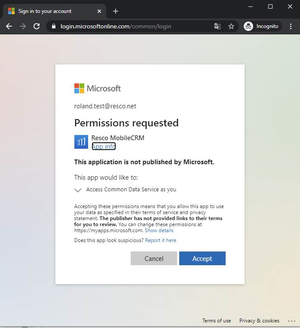
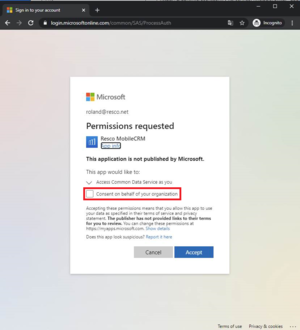


- There's also a direct link for admin consent. In this case, you have to log in as a global admin and enter your tenant ID (either domain name or GUID):
https://login.microsoftonline.com/resco.net/v2.0/adminconsent?client_id=a116bf70-75fe-41c2-9f9f-7f3d0faff4bb&response_type=code&redirect_uri=https%3A%2F%2Flogin.microsoftonline.com%2Fcommon%2Foauth2%2Fnativeclient&scope=https%3A%2F%2F<hostname>%2Fuser_impersonation.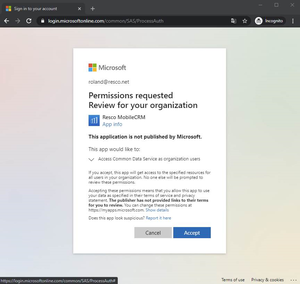

- It is also possible to grant consent using Microsoft Graph web API. If you are curious about this method, contact Resco support.
See also
- Upgrading Microsoft Dynamics: Resco-specific instructions for upgrading to a newer version of Dynamics
- Resco CRM sync: Connect an organization on Resco Cloud and with a Dynamics organization. Synchronize data and metadata.
- Resco for Dynamics 365: Official product page