
Localization examples
Entity item on home screen
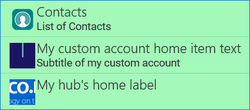
In this example, we rename the title and subtitle of an entity on home screen, add a custom icon for the item.
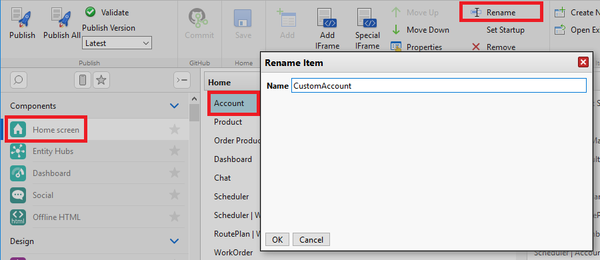
- In Woodford, edit the home screen. Select the entity and click Rename. Use a unique one-word string, for example, "CustomAccount".
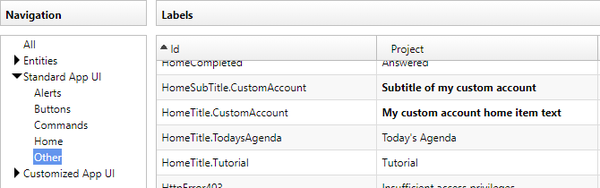
- Select Design > Localization from the Administrator menu and edit a language, Click Add to add a new localization string. As the ID, use "HomeTitle.HomeItemName"; in this particular example, "HomeTitle.CustomAccount". Add another string for HomeSubTitle.CustomAccount.
- If you want to change the icon of the home screen item, select Design > Images from the Administrator menu. Go to the Home directory and click Add to add a new image. As the image name, use the name you used in step 1, for example "CustomAccount".


Hub item on home screen
In this example, we create a new hub, add it to the home screen with a custom label and icon.
- In Woodford, go to Components > Entity Hubs and create a new hub. Give it a unique, one-worded name, for example "myHub".
- Go to Components > Home screen and add the new hub to your home.
- Go to Design > Localization and add new strings. As the ID, use "myHub" for the title and "myHub.SubTitle" for the subtitle.
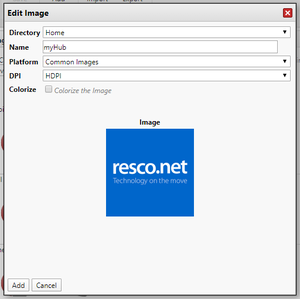
- Go to Design > Images and add the new icon to the Home directory. Use "myHub" as the name.
- Result:

Rename views
Views are internally identified by their names. As a result, renaming views is tricky; see the best practices. In this example, we use localization to change the label of a view in the app.
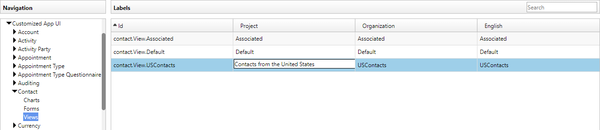
- In Woodford, go to Entities > Contact, click Show UI, and create a new view. Give it a unique, one-worded name, for example "USContacts".
- Go to Design > Localization, find the string for this new view and click Edit Project to enter a localized label.
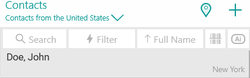
- Result:


Change names of view buttons and commands
When editing a view in Woodford, you can use Command editor to add actions to your views. Sometimes, it is appropriate to rename these actions so that users can understand them better.
| Tip | If you have only a single command on your view, the text of the command is displayed on the button; in this case, use a short text. If you have multiple commands, they are available from the hamburger menu, and there's enough room for multiple words. |
To set a localized name for the buttons, go to Localization and open the appropriate language, for which you want to specify button names. Click Add to add a new localization item.
- To localize a standard button that does not require additional setup (for example, Email, SMS, or Delete), the string ID is
Buttons.NameOfTheCommand; for exampleButtons.AssignToMe.
- To localize the change of a status code, the ID is
entityName.ChangeStatus.statusNumber; for exampleaccount.ChangeStatus.1.
- To localize the Open button, specify the entity where the field exists and what is the field that points to that entity (lookup field), i.e.
Buttons.Open.entityName.lookupFieldID; for example,Buttons.Open.contact.parentcustomerid.
- If the button opens an Activity (to open a parent activity in case of a custom setup), the ID is
Buttons.Open.entityName.lookupFieldID; for example,Buttons.Open.activitypointer.regardingobjectid.
- To localize the Create button, e.g. you want to allow users to create a new Case from Account view, in addition to Buttons.Create, you need to specify the target entity name and the lookup field name on the target entity:
Buttons.Create.targetEntityName.lookupFieldID. For example, when creating a Case record from Account view, the ID isButtons.Create.incident.customerid. Again, the hint is that the targetEntityName and lookupFieldID name are displayed in the Button’s configuration.
-
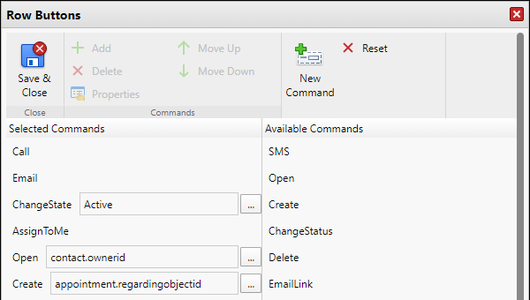 Commands as they are defined in a view
 -
 Default labels in the app
 -
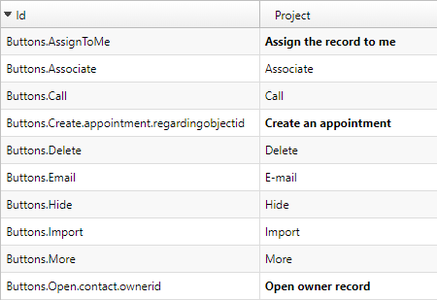 Some of the custom localization strings
 -
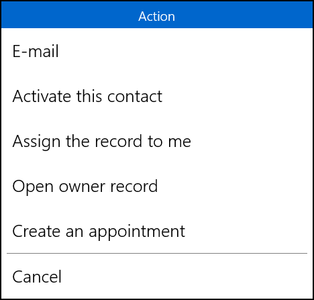 Custom strings in action


Localizing text labels in viewa
In addition to CRM data, you can also add constants - static text that can explain a value or serve as a label. Constants can also be localized so that in different languages, a different text is displayed. If you want to localize constants, they need to start with an at sign (@), e.g. @something.
The ID for localizing is equal to the constant text with the opening "@".
-
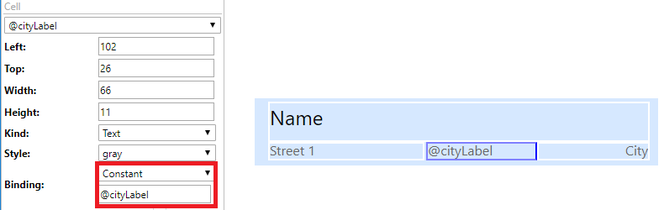 Add a label to your view
 -
 Create a new string
 -
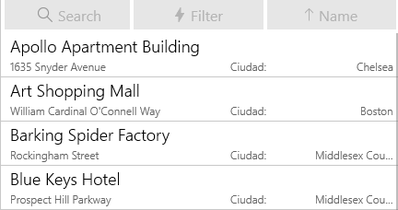 Verify in the app


