
Working hours
Working hours is a feature that allows you to configure the working hours of your resources. On the Schedule Board, this restricts the time interval for scheduling tasks to this resource.
This feature was designed for the resco.FieldService project (since release 14.3), but it can be potentially reused for other organizations that use Schedule Board.
Prepare the necessary tables and columns
The following two tables are necessary for this feature. On Dataverse, install a recent version of Woodford to make them available in your organization.
- SB Working Hours (resco_fs_workinghours)
- Each record corresponds to a different set of weekly working hours. You can define multiple working hours, each with a different name.
- On Resco Cloud, the entity is called Working hours (fs_workinghours).
- SB Settings (resco_fs_settings)
- This table has a lookup column to the Working Hours table. Create only one record in this table. The lookup defines your company's default working hours.
- On Resco Cloud, the entity is called Company settings (fs_settings).

- Resource table with a lookup to Working Hours
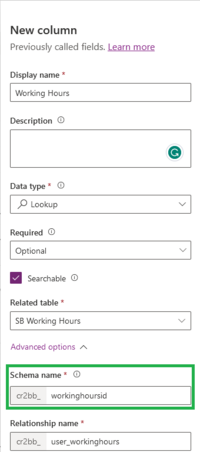
- Additionally, designate a table that corresponds to your Schedule Board resources (i.e., the people responsible for a particular activity). This can be a standard table, for example, System User, or a custom table. In either case, this table must include a lookup column to the Working Hours table, called "workinghoursid". This allows you to select working hours for each resource.

Enable the tables in Woodford
Start Woodford and enable the necessary tables and columns. Also, create Woodford views and forms for these tables.
- SB Settings
- Enable the columns First Day Of Week, Start Of Day, Working Day Duration, Working Hours, Working Weekends.
- Create a view and a form for this table. The only necessary column is "Name". The form will automatically include the working hours editor.
- SB Working Hours
- Enable the column Data.
- Create a view and a form for this table. Include the SB Working Hours lookup column on the form.
- Resource table
- Enable the new column (SB Working Hours lookup).
- Add the column to your form.
Finally, add these tables to your home screen so that you can enter the data.

Define working hours
When you create a form for the Working hours table in Woodford, the form automatically includes an editor.

The hours are stored in the Data field in JSON format. The numbers are in minutes. Don't edit the Data field directly; when you save the record, values from the custom editor overwrite the Data field.
{
  "workingHours": [
    [],
    [
      {
        "start": 480,
        "end": 780
      },
      {
        "start": 840,
        "end": 1140
      }
    ],
    [
      {
        "start": 480,
        "end": 960
      }
    ],
    [],
    [],
    [],
    null
  ],
  "workingHolidays": false
}
Associate resources with working hours
Once the working hours are defined, you can associate them, either as the default setting of the organization, or with a particular resource.


Working hours in action
If everything is properly configured, you can see the working hours highlighted in the Schedule Board timetable. Note that Luke's working hours are different from other team members.
