
Guides
| Warning | Work in progress! We are in the process of updating the information on this page. Subject to change. |
Guides are an optional component of the resco.ServicePlatform that allows you to create documentation that your technicians in the field can follow.
Prerequisites
- Resco Cloud backend
- Release 15.0 (spring 2022) or later
Configuring in Woodford
- Edit an app project in Woodford.
- Select Settings > Guides from the Project menu.
- Select Enable Guides.
- Select the entities for which you want to define guides.
- Select Enable Feedback and set the delay after viewing a guide when a feedback form appears.
- Click Save.
- Optionally, click Add To Home if you want to add the Guides view as the last item on your home screen.
Adding guide categories
Guides that you create can belong to a category. To keep your guides organized, create guide categories that are suitable for your organization.
- Start the Admin Console.
- Select Data > Manage Data.
- Scroll down to the Guide Category entity and open it.
- Click New and enter a category, for example, "maintenance" or "repair", and save it.

Guides editor
I don't see guides editor
If you are using a resco.FieldService or resco.Inspections organization with a custom manager's landing page, there's no Guides Editor link on it. You can add it manually.
- Start Woodford (System Administrator > Manage Apps or Administration > App Configurator).
- Edit the Manager app project and edit its home screen.
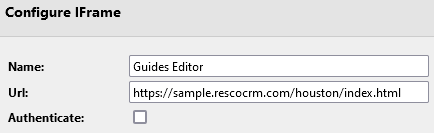
- Click Add IFrame and add the link to the Guides Editor in the following format. Replace the sample with a valid link to your organization.
- Save all changes and publish the app project.
