
Guides
|
resco.Guides is a workforce knowledge management software by Resco.
It is an optional component of resco.ServicePlatform that allows you to create step-by-step instructions that your technicians in the field can follow to solve a problem. If you have an existing solution that uses Woodford and Resco mobile apps, it can be added to your solution in a few clicks.
It is available for Microsoft Dataverse/Dynamics 365 and Resco Cloud backends.
Features
- Guides: Step-by-step instructions that combine text content, images, videos, and PDF attachments that are related to a particular record (for example, a piece of machinery). Guides can be displayed in Resco mobile apps or Power Apps.
- Guides library: A web application accessible from the Resco Cloud landing page and Dynamics which allows you to create, modify, and publish guides.
- Feedback: App users can rate the guides and provide feedback to the guide editors in the back office.
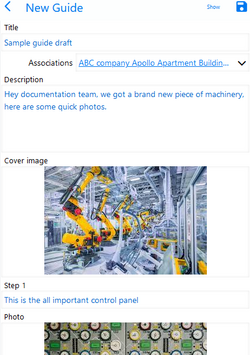
- Guides harvesting: App users can quickly collect simple guides from the field (take/upload photos and add comments) if they identify missing processes. Guide editors in the back office can then standardize the guides, add proper language and associations, and then publish them to make the information available to all users in the field (knowledge decentralization from experts to the entire organization).
- Preview Localization: Guides can be localized. The translation can be either manual or you can leverage cloud services for machine translation.
- Preview AI generation: You can generate new guides using AI.
Prerequisites
- Resco Cloud – Release 15.0 (spring 2022) or later
- Dataverse/Dynamics – Release 15.1 (summer 2022) or later
- Preview Power Apps – Release 16.1 (summer 2023) or later
- Preview Power Pages – Release 16.1 (summer 2023) or later
License
- resco.Guides requires Resco's ultimate license.
- If you need more information, contact us at sales@resco.net.
Configuring in Woodford
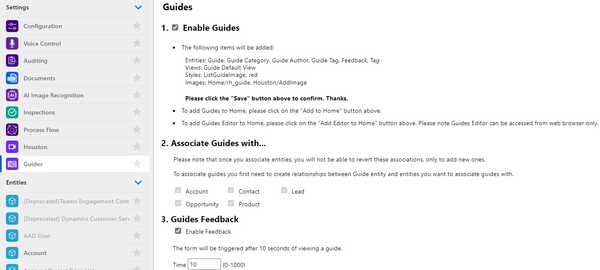
- Enabling guides
- Edit an app project in Woodford.
- Select Settings > Guides from the Project menu.
- Select Enable Guides.
- Select the entities for which you want to define guides. For example, if you want guides for your products, select the Product entity. You can add multiple.
Notes:- Once guides are enabled for an entity, they cannot be disabled.
- On Dynamics, you need to create an N:N entity before you can enable guides for an entity.
- Select Enable Feedback and set the delay after viewing a guide when a feedback form appears.
- Click Save.
- Optionally, click Add To Home if you want to add the Guides view as the last item on your home screen.
- For manager/admin projects that should have access to the Guides Editor, click Add Editor To Home.

- Adding guides to entity forms
- The home screen item lists all guides. Alternatively (or in addition) to the home screen button, you can add a list of related guides to an entity form. Users that display a record can then see the list of relevant guides.
- Edit an entity form.
- Click Add List and select "Guides List".
- Optionally, set up a filter, for example,
Status Reason Equals Published. - Save all changes.
Setting up Dynamics
Before you can use Guides on Dynamics, you have to:
- Install the Guides solution to your Dynamics
- Create N:N entities between the Guide entity and entities that need access to guides.
Installing the Guides solution
- Download the Guides solution file from Resco web.
- Log in to https://make.powerapps.com/ as a system administrator.
- Select Solutions from the menu.
- Click Import solution and select the downloaded solution file.
- Finish the import wizard.
- Wait until the import is complete. Then, click Publish all customizations.

Once installed and published, you can find "Resco Guides" in the list of apps. Select the app and click Play.

Defining N:N relationships
On the Dynamics backend, before you can associate a guide with another entity in Woodford, you must create an N:N relationship on Dynamics.
- Go to the Settings > Customizations and click Customize the System. A new window opens.
- In the left panel, expand Entities and find Guide.
- Expand Guide and click N: N Relationship.
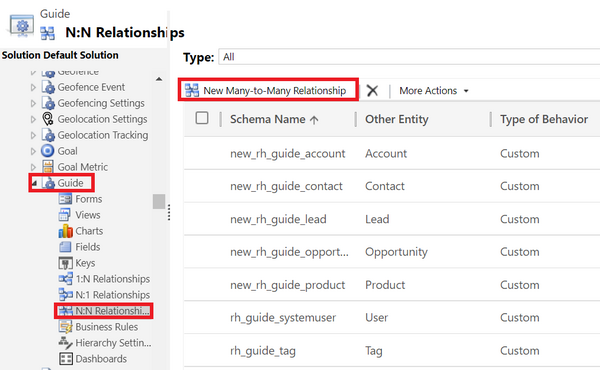
- Click New Many-to-Many Relationship and fill Other Entity information.
- Click Save & Close.

Adding guide categories
Resco Cloud
Guides that you create can belong to a category. To keep your guides organized, create guide categories that are suitable for your organization.
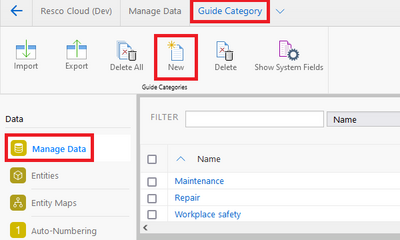
- Start the Admin Console.
- Select Data > Manage Data.
- Scroll down to the Guide Category entity and open it.
- Click New and enter a category, for example, "Maintenance" or "Repair", and save it.

Microsoft Dynamics
- Start Resco Guides > Categories from the left panel.
- Click New in the tool bar and fill in the information.
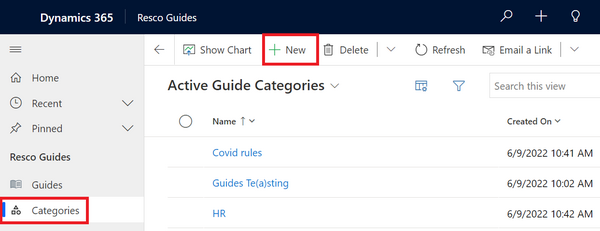
- Click Save & Close.

Guides library
Guides library or editor is a web tool for guide authors. It serves for creating and managing guides. See Guides library for details.
Using guides in the app
In the app, you can find guides in three places:
On the home screen - all guides (if you used the Add To Home button in Guides configuration)

On the entity form - related guides (if you added the related guides list to the form)

In a questionnaire (if you added the guide as a static component of the questionnaire)

Tap the guide that interests you to display it.


Harvesting guides from the app
You can also create new draft guides:
- On the home screen, tap Guides.
- Tap the plus button in the top right corner.
- Add a title, description, steps, and photos.
- Save the guide.
- Synchronize the app to make the guide available in the Guides Editor (status = "collected").

See also
{{#CI form: title = Was this information helpful? How can we improve?
| type = inputs
| [textarea]
}}