
Guides library: Difference between revisions
No edit summary |
|||
| Line 39: | Line 39: | ||
* Sort order | * Sort order | ||
== Single and bulk actions | == Single and bulk actions == | ||
You can select one or multiple guides. Depending on the selection, specific commands become available. | You can select one or multiple guides. Depending on the selection, specific commands become available. | ||
; Single guide | |||
Hover over a guide to display inline buttons: | Hover over a guide to display inline buttons: | ||
| Line 53: | Line 53: | ||
[[File:Working with single guide.png]] | [[File:Working with single guide.png]] | ||
; Multiple guides | |||
You can check multiple guides (up to 10) to select them. The following bulk actions are available: | You can check multiple guides (up to 10) to select them. The following bulk actions are available: | ||
Revision as of 07:40, 25 July 2023
|
The guides editor or guides library is a dedicated tool for managing and editing guides. Intended for back office workers, it is designed to be used on a computer in a web browser. The tool can be divided into three main feature blocks:
- Library for managing guides
- Editor for editing guides
- Statistics for supervising guide usage
Starting the library
To start the library, log in to your organization:
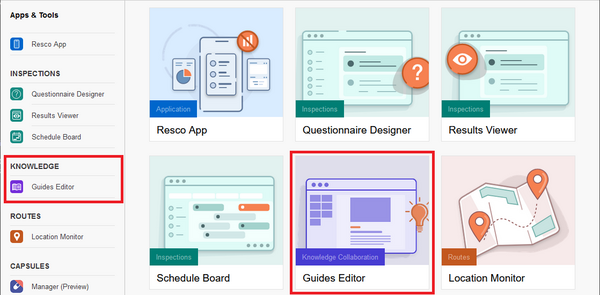
- On the Resco Cloud landing page, select Guides Editor.
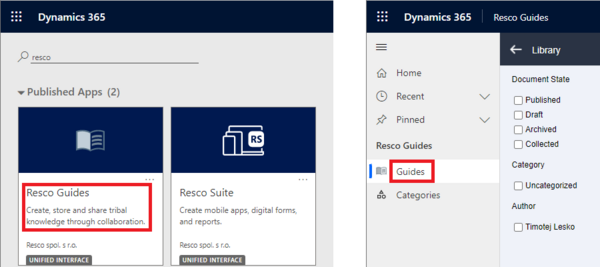
- On Dataverse, find Resco Guides in the list of published apps and select Guides.


If you are using a custom Resco Cloud landing page (for example, a manager's or admin project) and the guides library is not available in the menu, edit that app project in Woodford, go to Guides, and click Add Editor to Home.
Managing guides
The main screen of the library shows the list of guides.

The left pane lets you filter guides according to their status, category, author, tag, and related records.
The top row allows you to search the guides list and switch to the statistical dashboard.
The toolbar offers functions for managing guides:
- Create a new guide
- Edit a guide
- Duplicate (clone) a guide (only available on Resco Cloud)
- Archive a guide (Set its state to archived. Archived guides are not visible in the mobile app by default.)
- Import and export
- Share: Available for published guides. Displays a QR code that you can scan on your phone to open the guide. Also displays a link that you can use in the Questionnaire Designer to link the guide from a questionnaire.
- Preview
- Feedback
- Publish
- View as (switch between list view and grid view)
- Sort by
- Sort order
Single and bulk actions
You can select one or multiple guides. Depending on the selection, specific commands become available.
- Single guide
Hover over a guide to display inline buttons:
- Edit
- Duplicate (clone)
- Preview
- Share
- Publish or unpublish

- Multiple guides
You can check multiple guides (up to 10) to select them. The following bulk actions are available:
- Export
- Archive
- Publish and unpublish (requires that all selected guides are in a suitable state)

Creating a new guide
- On the list of guides, click New Guide.
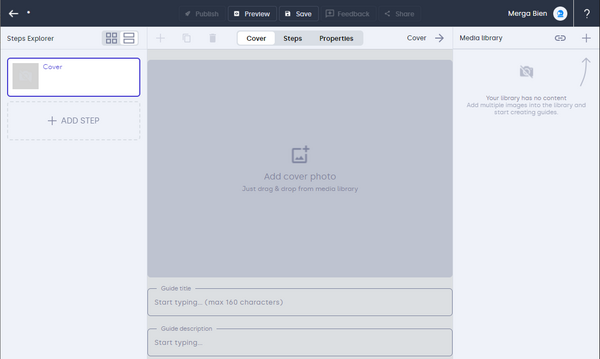
- In the Media library pane, click the plus button and upload images or PDF that you plan to use in the guide.
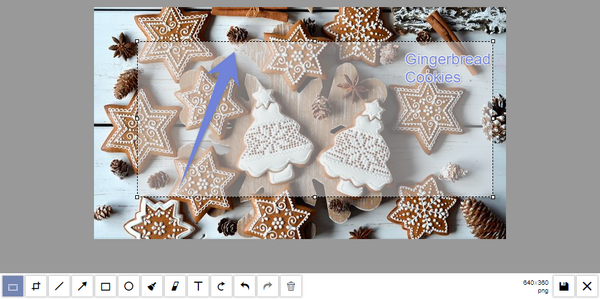
- Drag an image from the Media library pane to the central pane. You can then click Edit to crop the image or annotate it with text, arrows, or similar effects. Remember to save changes.
- Enter a title and description for your guide.
- In the Steps Explorer pane, add a new step.
- Just like for the cover page, drag an image from the library and enter a title and a description for the step. You can add more descriptive paragraphs, tips, or warnings as needed.
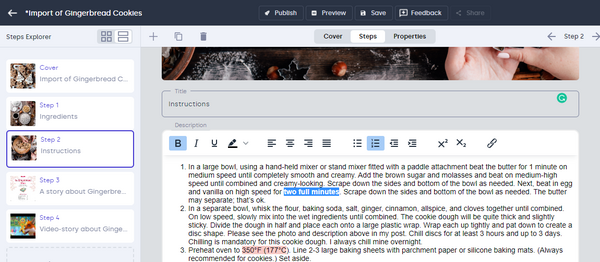
- Continue adding steps until the guide is complete. You can reorder steps on the Steps Explorer pane by dragging them to the right location.
- Switch to the Associate tab to edit guide properties.
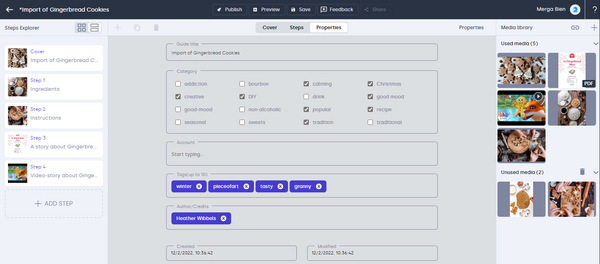
- Save all changes and publish your new guide.


Using the media library
The media library within the guide editor is the place where you store files that are or can be used in a guide. The following media types are supported:
- Images
- You can edit the images directly in the media library, resizing them, cropping them, adding text or arrows, etc.
- You can also set up how to scale images.


- PDF documents
- Videos
- When harvesting guides in the field, users can record video on device (limited duration)
- In the guide editor, users can embed YouTube videos and/or include local videos (limited size)
| Note | Videos recorded on some Android devices are by default saved in the webm format. Unfortunately, iOS devices often don't support this format. As a workaround, a guides administrator can download the video from the guide using the guide editor, convert it to mp4 format using a third-party tool, then upload it back to the guide. |
- Gallery
- Each guide step can contain multiple images/videos/PDF documents in a gallery. Up to 5 documents can be used. Multiple documents are not available on the cover page.
Media are saved as notes. Databases often have limits on how large a note attachment can be. The maximum allowed size in the library is 10 MB, but your backend might have a lower limit. Your backend admin might be able to increase the limit.
{{#CI form: title = Was this information helpful? How can we improve? | type = inputs | [textarea] }}