
Resco Reports connector: Difference between revisions
Marek Rodak (talk | contribs) |
Marek Rodak (talk | contribs) |
||
| Line 20: | Line 20: | ||
=== Flow setup === | === Flow setup === | ||
In this example, we | In this example, we create a flow for a single account record. | ||
# Go to the form of the record you want to build a flow for. Click on the hamburger menu.<br>[[File:FlowBuild.png|600px]] | # Go to the form of the record you want to build a flow for. Click on the hamburger menu.<br>[[File:FlowBuild.png|600px]] | ||
Revision as of 10:07, 17 April 2023
| Integration with third-party systems |
|---|
|
Resco CRM Connector (web APIs):
|
| Warning | Work in progress! We are in the process of updating the information on this page. Subject to change. |
Resco Reports on Dynamics 365/Dataverse is currently in preview (release 16.0).
Traditionally, Resco's mobile reports are generated directly in Resco mobile apps. In some use cases, back office workers who don't have access to Resco Mobile CRM also want to generate such reports.
Resco Reports connector is a tool that allows you to generate reports directly from Dataverse/Dynamics backend using Power Automate flow. It is compatible with Microsoft Power Automate, Microsoft Power Apps, and Azure Logic Apps.
Just like when used in Resco mobile apps, the report templates are created using Resco's Report Designer (or, in the case of questionnaires, in the Questionnaire Designer).
Prerequisites
- The setup is done only by the admin
- Report Template created in the organization
- Power Automate license for an admin
- Resco license
- Dataverse Admin License
Setup
Flow setup
In this example, we create a flow for a single account record.
- Go to the form of the record you want to build a flow for. Click on the hamburger menu.
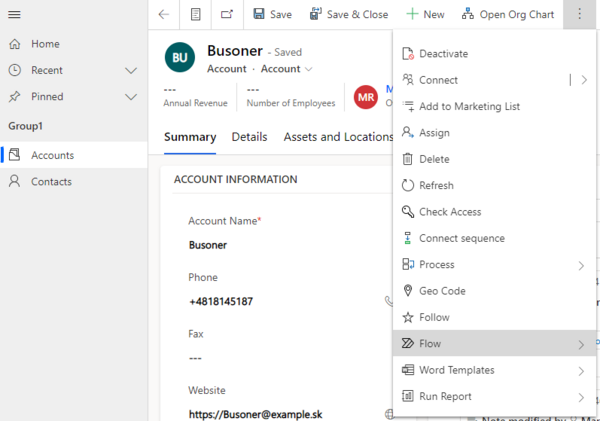
- Go to the Flow and select Create a flow.
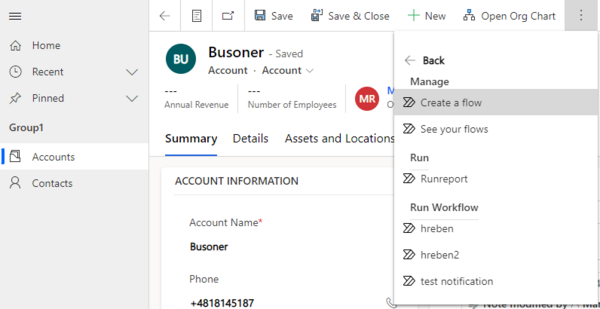
- Click Continue.
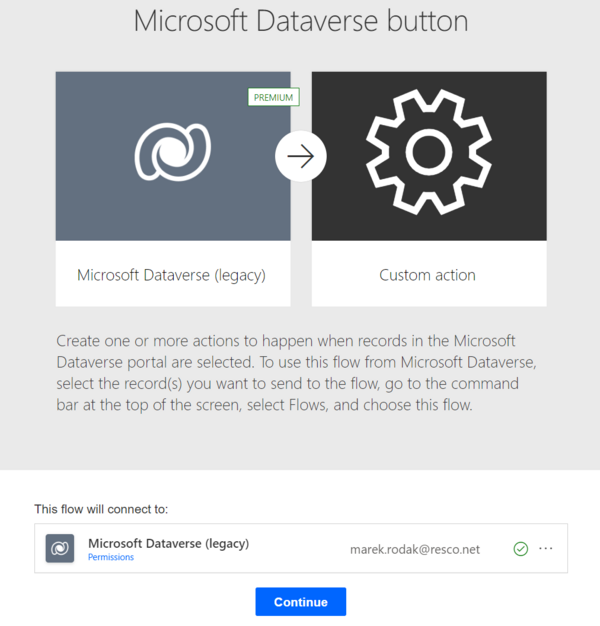
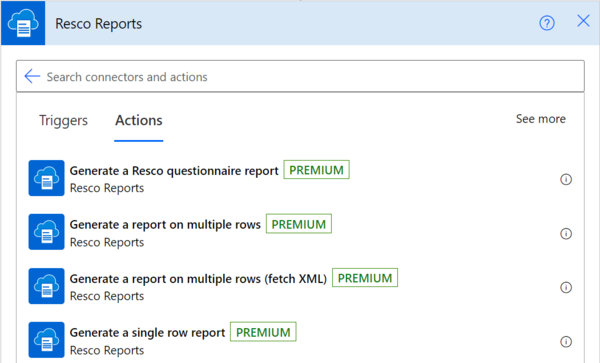
- Click Next Step, search for Resco Reports, and select it.
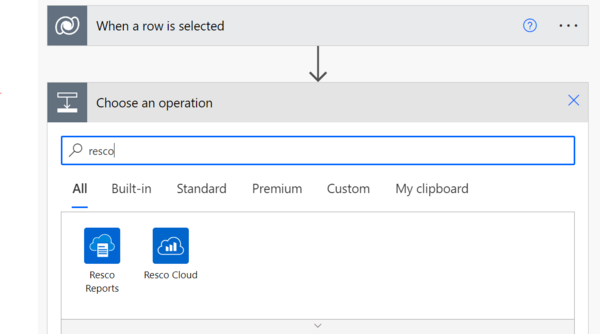
- Select Generate a single row report.
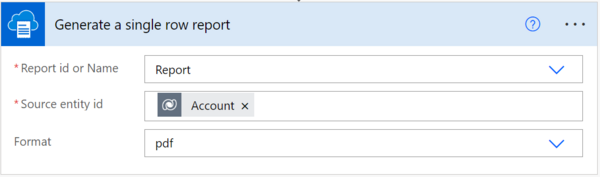
- Select the correct Report id or Name, Source entity id (in this case, Account), and your preferred format.


Report setup
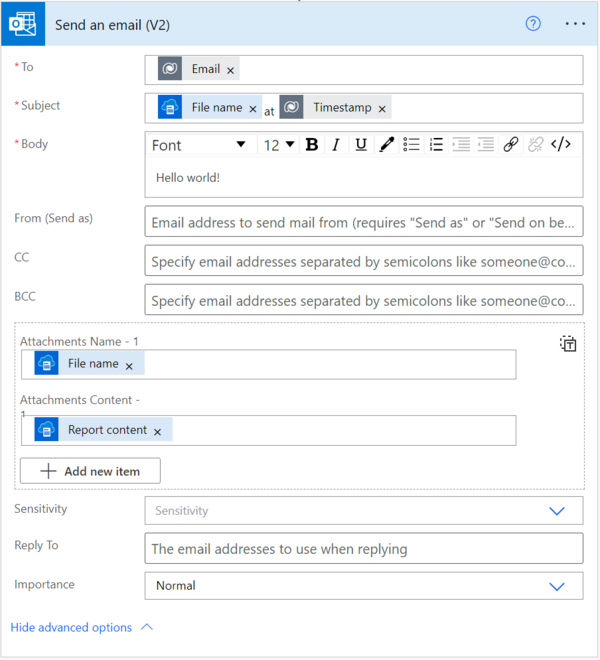
In previous steps, we created a flow to generate the Resco Report via Power Automate. The next step is to set up what will happen with this report. Here are some examples:
- Send an email action/step:
- Save the report as a note related to the account:
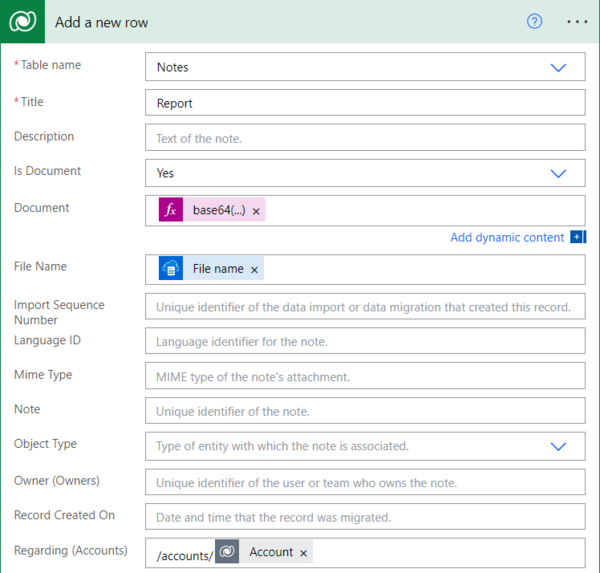
Set the Document expression as: base64(outputs('GenerateReport')?['body']). The document is an encoded output from the "Generate single record report" step.


Run the report
After completing all previous steps, the Report flow will be available on the form.

Known issues and limitations
The report is generated in the context of a certain table (say Accounts), and only a subset of report templates are relevant (those targeting the Accounts table). Despite that, the connector offers all available report templates when choosing the Report id or Name argument.
Static images
Static images (such as logos), fonts, or other documents stored in the offline HTML section of Woodford project are not available while generating the report on Dynamics. Therefore, these features are not supported. In the case of company logos, consider saving the logo in Dynamics, for example, as a note of a related entity.
Common errors and remedies
The error is mainly caused by wrong arguments passed to the connector action. In such a case, the connector returns HTTP error 400 (Bad request), and the response body contains JSON data with an error message and additional data. The error message should explain which parameter had an unexpected format or value.
In case of unexpected errors, the connector returns HTTP error 500 (Internal server error), and the response body contains JSON data with an error message and additional data. Please report such cases to the support service.
FAQ
- How can I run a specific report from the entity form?
- Define a new flow in Power Automate, specify trigger When a row is selected (Dataverse), add the Resco Reports step, choose Generate a single row report, specify your Dataverse environment, choose your report name from the list as reportId argument, choose the report file format and use Dynamic content to choose your entity primary key field as sourceId argument. Finally, specify an action consuming resulting Report content and File name variables appearing in Dynamic content for any step following the Resco Reports action.
- How can I generate a report for a set of records selected in the list?
- You can create a custom button with a JavaScript function taking the list of currently selected records and posting an HTTP request to Power Automate flow with the When an HTTP request is received trigger. This trigger can then take your custom arguments and pass them to Resco Reports action Generate a report on multiple rows.