
Mapping questions to fields: Difference between revisions
Marek Rodak (talk | contribs) |
|||
| Line 41: | Line 41: | ||
== Example: refresh form after completing questionnaires == | == Example: refresh form after completing questionnaires == | ||
'''Problem''': Start a questionnaire from an entity form. The questionnaire uses data mapping to modify the record data. After completing the questionnaire, data is changed, but the form is not refreshed automatically, showing old data. User needs to close and reopen the form and that's | '''Problem''': Start a questionnaire from an entity form. The questionnaire uses data mapping to modify the record data. After completing the questionnaire, data is changed, but the form is not refreshed automatically, showing old data. User needs to close and reopen the form and that's an unintuitive and redundant step. | ||
'''Solution''': Use an [[On Change]] rule [[Form#onChange|triggered by a change]] in the Inspections tab to [[Execute JavaScript from rules|execute a JavaScript function]] that refreshes the form. | '''Solution''': Use an [[On Change]] rule [[Form#onChange|triggered by a change]] in the Inspections tab to [[Execute JavaScript from rules|execute a JavaScript function]] that refreshes the form. | ||
Revision as of 09:21, 23 February 2023
The data mapping feature allows you to map a question to a particular record field. You can read a field to populate the answer automatically or save the answer to a record field at the end – or both.
Identify the mapped record
You have several options for indicating which record and field should be mapped to an answer.
- One of the simplest options is using the regarding record. This is the record from which the questionnaire was started. If your workflow assumes that you launch questionnaires from an entity form, for example, you go to an asset and start the inspection, this is the way to go.
- If you have a list of questionnaire templates directly on your home screen or start inspection differently, the regarding field is empty. Instead, you can add a lookup question to your questionnaire template and then use the lookup target as the mapped record.
Set the mapping direction
Once you identify the record and field, you can choose mapping direction. Essentially, you can:
- read data from the record to populate the answer on the questionnaire
- write data from the answer into the record field
- or both!
You can read the data only once, when the questionnaire is created, or repeatedly, whenever you open an incomplete questionnaire.
You can save the data only once, when the questionnaire is completed, or repeatedly, whenever you save an in-progress questionnaire.
Edit the questionnaire template
- Edit a questionnaire template in the designer and enable Data Mapping in the toolbar.
- Click the link button to start the data mapping wizard.

- Select which record should be linked to the question:
- Regarding record (Record from which the questionnaire was started)
- Record from a lookup question
- For each entity, select the record that should be mapped.
- Finally, select whether to read data from the record field or save the answer to the field.


Usage in the app
Once you start such a questionnaire in the app, the record data can populate the default answers. And when you complete it, changed answers can be saved to the mapped record. For example, your inspection could include details of the inspected entity. In the example below, you can review and update the contact information of your contact directly from the questionnaire.

When you start the questionnaire without a regarding record or without answering the lookup, you can continue using the questionnaire as usual. The data mapping is ignored: the answer is not populated at the start and is only saved in the questionnaire.
Example: refresh form after completing questionnaires
Problem: Start a questionnaire from an entity form. The questionnaire uses data mapping to modify the record data. After completing the questionnaire, data is changed, but the form is not refreshed automatically, showing old data. User needs to close and reopen the form and that's an unintuitive and redundant step.
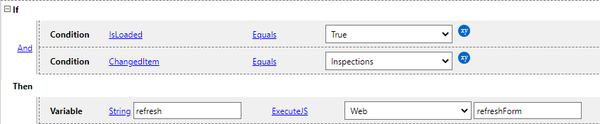
Solution: Use an On Change rule triggered by a change in the Inspections tab to execute a JavaScript function that refreshes the form.
- Edit the app project in Woodford.
- Select the entity from the Project menu and edit the form.
- Select the Inspections tab and click Properties.
- Go to the Properties tab, enable Trigger OnChange event.
- Save all changes.
Add an iframe and upload JavaScript
- On the entity form, click Add IFrame, then click Manage.
- Verify that a recent version of JSBridge.js is included in the offline HTML.
- Create or import an HTML file with the simple script listed below.
- Save and close the Offline HTML window.
- On the Configure IFrame window, enter the name of the script file.
- Click OK and save all changes.
<!DOCTYPE html>
<html lang="en" xmlns="http://www.w3.org/1999/xhtml">
<head>
    <meta charset="utf-8" />
    <title>Empty Offline HTML page</title>
    <meta http-equiv="X-UA-Compatible" content="IE=edge" />
    <meta name="viewport" content="initial-scale=1, user-scalable=no" />
    <script src="JSBridge.js"></script>
</head>
<body>
    <script>
        function refreshForm(){
        MobileCRM.UI.EntityForm.refreshForm();
        }
        function saveForm() {
            MobileCRM.UI.EntityForm.save();
        }
    </script>
</body>
</html>
This example includes only two simple functions:
- Use refreshForm if you only need to refresh the form without saving possible unsaved changes.
- Use saveForm to save the form. This automatically refreshes the form.
Create a rule that executes the script
- On the entity form, click On Change.
- Enter the following rule:
- Save all changes.
