
Select Form: Difference between revisions
Marek Rodak (talk | contribs) |
Marek Rodak (talk | contribs) |
||
| Line 34: | Line 34: | ||
</gallery> | </gallery> | ||
Finally, set up the | Finally, set up the Select Form rule. If the Account level contains data, start the value-checking branch. If the account level equals Customer, assign Customer form. If the account level contains a Potential customer, assign a Potentialcustomer form. | ||
[[File:SelectForm.PNG|600px]] | [[File:SelectForm.PNG|600px]] | ||
Revision as of 08:31, 12 December 2022
| Rules and examples |
|---|
|
 The Select Form rules are triggered when a form is about to be displayed. They let you set up which form is used for a particular record. For example, the form when creating a new record can display only a subset of fields. Once the record is saved, the full form is displayed instead.
Select Form rules are managed in Woodford, on the list of Mobile Views, Forms and Charts of an entity.
| Note | Due to architectural constraints, Select Form rules are not supported for Sales detail entities (OpportunityLineItem, OrderItem, QuoteLineItem, DealItem). This applies to all platforms (Salesforce, Dynamics, Resco Cloud). As a workaround, you can use multiple tabs and show/hide them using On Load rules. |
Example of a simple select form rule
| If Condition | Entity.statecode | Equals | Active |
| Then Step | FormName | Assign | MyActiveForm |
| Else Then Step | FormName | Assign | MyInactiveForm |
Example: Select a different form for customer and potential customer account
| Warning | Work in progress! We are in the process of updating the information on this page. Subject to change. |
In this example, we prepare two forms—one for the Customer account and the second for the Potential customer account.
First, we have to create a custom field to differentiate between Customer and Potential customer accounts. Let's go to Admin control, Entities, and click on the Account entity. Create a new Option set field called Account level. Add two options: Customer and Potential customer.

Now, we can prepare a specific form for each account type.
-
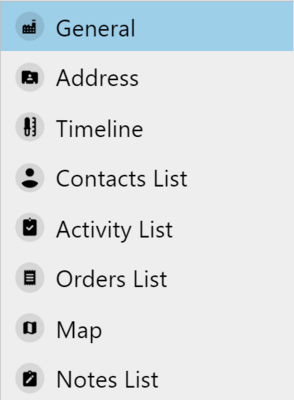 Customer
 -
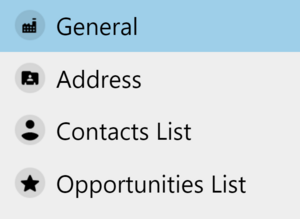 Potential customer


Finally, set up the Select Form rule. If the Account level contains data, start the value-checking branch. If the account level equals Customer, assign Customer form. If the account level contains a Potential customer, assign a Potentialcustomer form.
