Cell Click: Difference between revisions
No edit summary |
|||
| Line 11: | Line 11: | ||
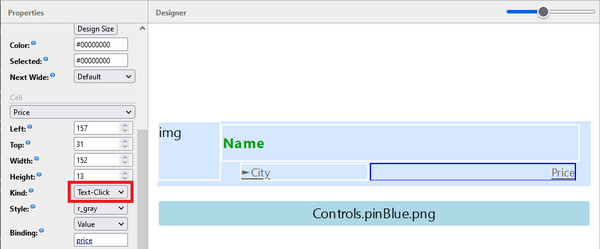
# Edit the view in question and make a field clickable:<br>[[File:Change Kind to Text-Click.png|600px]] | # Edit the view in question and make a field clickable:<br>[[File:Change Kind to Text-Click.png|600px]] | ||
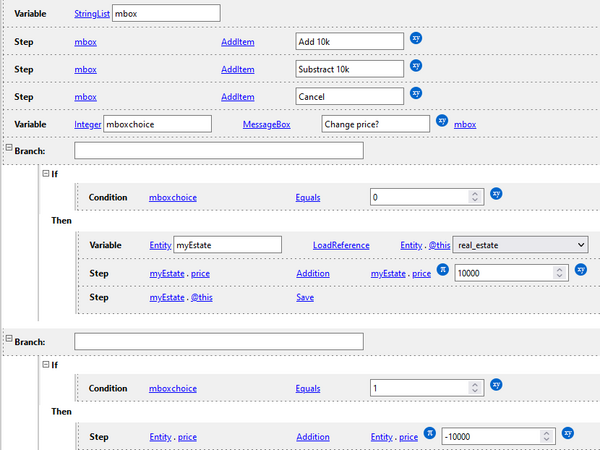
# Set up a '''Cell Click''' rule.<br>"mbox" is a [[StringList]] type of variable. It must be populated with the message box options.<br>"mboxchoice" is an integer variable that is filled when a user selects an option on the message box.<br>Option "0" saves the record afterwards. Option "1" leaves it "dirty".[[File:Set up the messagebox.png|600px]] | # Set up a '''Cell Click''' rule.<br>"mbox" is a [[StringList]] type of variable. It must be populated with the message box options.<br>"mboxchoice" is an integer variable that is filled when a user selects an option on the message box.<br>Option "0" saves the record afterwards. Option "1" leaves it "dirty".<br>[[File:Set up the messagebox.png|600px]] | ||
Revision as of 11:59, 26 October 2022
| Rules and examples |
|---|
|
| Warning | Work in progress! We are in the process of updating the information on this page. Subject to change. |
Rules are client-side scripts (no-code business logic) that are executed when a user of the mobile app interacts with the app. The Cell Click rules are executed when an editable or clickable cell is clicked. Rules are managed using the rules editor, usually in Woodford.
Cell Click rules are only available on the views; more specifically, on clickable or editable fields.
Example: messagebox with options
In this example, we make "Price" a clickable field on the "Real Estates" view. It displays a message box, and users can modify the price.

- Edit the view in question and make a field clickable:
- Set up a Cell Click rule.
"mbox" is a StringList type of variable. It must be populated with the message box options.
"mboxchoice" is an integer variable that is filled when a user selects an option on the message box.
Option "0" saves the record afterwards. Option "1" leaves it "dirty".