
Template:Create a new Houston guide: Difference between revisions
Created page with "<noinclude> This procedure is used in multiple places. Category:templates </noinclude> # On the list of guides, click '''New Guide'''.<br>File:Houston blank library.pn..." |
Marek Rodak (talk | contribs) No edit summary |
||
| Line 6: | Line 6: | ||
</noinclude> | </noinclude> | ||
# On the list of guides, click '''New Guide'''.<br>[[File:Houston blank library.png|600px]] | # On the list of guides, click '''New Guide'''.<br>[[File:Houston blank library.png|600px]] | ||
# In the '''Media library''' pane, click the plus button and upload images that you plan to use in the guide. | # In the '''Media library''' pane, click the plus button and upload images or PDF that you plan to use in the guide. | ||
# Drag an image from the '''Media library''' pane to the central pane. You can then click '''Edit''' to crop the image or annotate it with text, arrows, or similar effects. Remember to save changes.<br>[[File:Houston image editing.png|600px]] | # Drag an image from the '''Media library''' pane to the central pane. You can then click '''Edit''' to crop the image or annotate it with text, arrows, or similar effects. Remember to save changes.<br>[[File:Houston image editing.png|600px]] | ||
# Enter a title and description for your guide. | # Enter a title and description for your guide. | ||
Revision as of 11:11, 17 June 2022
This procedure is used in multiple places.
- On the list of guides, click New Guide.
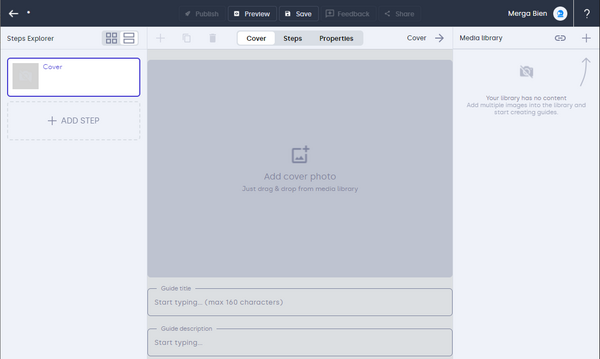
- In the Media library pane, click the plus button and upload images or PDF that you plan to use in the guide.
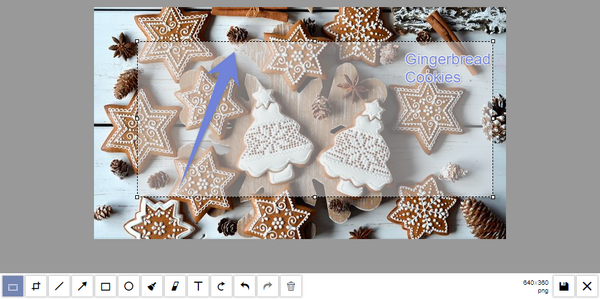
- Drag an image from the Media library pane to the central pane. You can then click Edit to crop the image or annotate it with text, arrows, or similar effects. Remember to save changes.
- Enter a title and description for your guide.
- In the Steps Explorer pane, add a new step.
- Just like for the cover page, drag an image from the library and enter a title and a description for the step. You can add more descriptive paragraphs, tips, or warnings as needed.
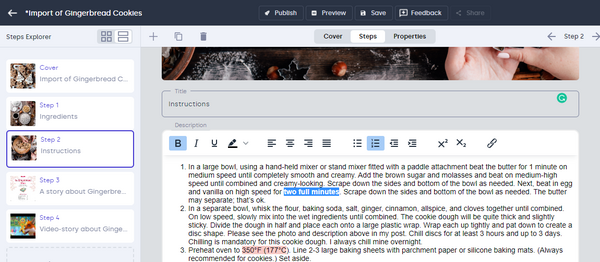
- Continue adding steps until the guide is complete. You can reorder steps on the Steps Explorer pane by dragging them to the right location.
- Switch to the Associate tab to edit guide properties.
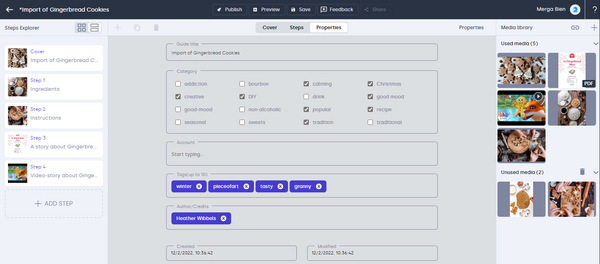
- Save all changes and publish your new guide.


