
Guides: Difference between revisions
| Line 38: | Line 38: | ||
# Log in to your [[Resco Cloud]] organization. | # Log in to your [[Resco Cloud]] organization. | ||
# On the [[Resco_Cloud#Resco_Cloud_landing_page|landing page]], select '''Guides Editor'''. | # On the [[Resco_Cloud#Resco_Cloud_landing_page|landing page]], select '''Guides Editor'''. | ||
[[File:Guides editor.png|600px]] | |||
The editor screen offers several functions that should make your work a pleasant experience: | |||
* Filters in the left pane allow to you quickly locate what you need. You can filter guides according to their category and status. | |||
* '''Sort by''': Select how should the displayed guides be ordered in the top row. | |||
* '''View as''': Switch between grid and list view. | |||
[[File:Working with guides.png|300px]] | |||
To work with a particular guide, do one of the following: | |||
* select it and use the top row buttons. | |||
* hover over a guide and use the buttons that appear. | |||
The following functions are available: | |||
* Edit | |||
* Duplicate (clone) | |||
* Archive | |||
* Share: Available for published guides. Displays a QR code that you can scan on your phone to open the guide. | |||
* Preview | |||
* Publish or unpublish | |||
=== I don't see guides editor === | === I don't see guides editor === | ||
| Line 43: | Line 64: | ||
If you are using a [[resco.FieldService]] or [[resco.Inspections]] organization with a custom manager's landing page, there's no Guides Editor link on it. You can add it manually. | If you are using a [[resco.FieldService]] or [[resco.Inspections]] organization with a custom manager's landing page, there's no Guides Editor link on it. You can add it manually. | ||
# Start Woodford ('''System Administrator > Manage Apps''' or '''Administration > App Configurator'''). | # Start Woodford ('''System Administrator > Manage Apps''' or '''Administration > App Configurator'''). | ||
# | # Go to the Manager app project and edit its [[home screen]]. | ||
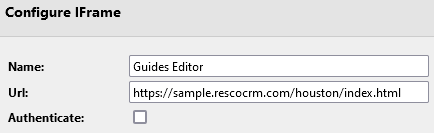
# Click '''Add IFrame''' and add the link to the Guides Editor in the following format. Replace the sample with a valid link to your organization.<br>[[File:Add iframe with link.png]] | # Click '''Add IFrame''' and add the link to the Guides Editor in the following format. Replace the sample with a valid link to your organization.<br>[[File:Add iframe with link.png]] | ||
# Save all changes and publish the app project. | # Save all changes and publish the app project. | ||
Revision as of 09:09, 18 March 2022
| Warning | Work in progress! We are in the process of updating the information on this page. Subject to change. |
Guides are an optional component of the resco.ServicePlatform that allows you to create documentation that your technicians in the field can follow.
Prerequisites
- Resco Cloud backend
- Release 15.0 (spring 2022) or later
Features
- Guides: Documents that combine images, text content, and PDF attachments that are related to a particular record (for example, a piece of machinery) that users of Resco mobile apps can display in their apps.
- Guides editor: A web application accessible from the Resco Cloud landing page which allows you to create, modify, and publish guides.
- Feedback: App users can rate the guides as feedback for the guide editors.
- Drafts: App users can quickly assemble draft guides: take photos and add comments. Guide editors in the back office can then expand the guides, add some polish, and then publish them to make the information available to all users in the field.
Configuring in Woodford
- Edit an app project in Woodford.
- Select Settings > Guides from the Project menu.
- Select Enable Guides.
- Select the entities for which you want to define guides.
- Select Enable Feedback and set the delay after viewing a guide when a feedback form appears.
- Click Save.
- Optionally, click Add To Home if you want to add the Guides view as the last item on your home screen.
Adding guide categories
Guides that you create can belong to a category. To keep your guides organized, create guide categories that are suitable for your organization.
- Start the Admin Console.
- Select Data > Manage Data.
- Scroll down to the Guide Category entity and open it.
- Click New and enter a category, for example, "maintenance" or "repair", and save it.

Guides editor
- Log in to your Resco Cloud organization.
- On the landing page, select Guides Editor.

The editor screen offers several functions that should make your work a pleasant experience:
- Filters in the left pane allow to you quickly locate what you need. You can filter guides according to their category and status.
- Sort by: Select how should the displayed guides be ordered in the top row.
- View as: Switch between grid and list view.

To work with a particular guide, do one of the following:
- select it and use the top row buttons.
- hover over a guide and use the buttons that appear.
The following functions are available:
- Edit
- Duplicate (clone)
- Archive
- Share: Available for published guides. Displays a QR code that you can scan on your phone to open the guide.
- Preview
- Publish or unpublish
I don't see guides editor
If you are using a resco.FieldService or resco.Inspections organization with a custom manager's landing page, there's no Guides Editor link on it. You can add it manually.
- Start Woodford (System Administrator > Manage Apps or Administration > App Configurator).
- Go to the Manager app project and edit its home screen.
- Click Add IFrame and add the link to the Guides Editor in the following format. Replace the sample with a valid link to your organization.
- Save all changes and publish the app project.
