
Send log: Difference between revisions
| Line 11: | Line 11: | ||
::[[File:Setup settings.png|400px]] | ::[[File:Setup settings.png|400px]] | ||
If neither About nor Setup / Settings item is available in your app, please contact your CRM administrator (or the person responsible for Resco Mobile CRM in your company), to guide you to the About section, or to place the About section to a visible place in the Resco Mobile CRM application customization. | If neither About nor Setup / Settings item is available in your app, please contact your CRM administrator (or the person responsible for Resco Mobile CRM in your company), to guide you to the About section, or to place the About section to a visible place in the Resco Mobile CRM application customization. | ||
== Sending logs from Woodford == | == Sending logs from Woodford == | ||
Revision as of 11:28, 11 November 2020
In case of problems, Resco support may occasionally ask you for log files.
Sending logs from mobile apps
- Go to the app's About section – typically available on the Home screen.
- Tap the scroll icon in the top right corner of the app.

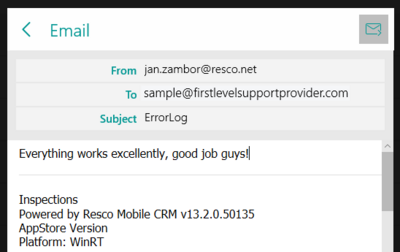
- Add any details as necessary and then tap the send icon.


If you can’t find the About section in your app, go to the Setup / Settings section of the app. From there, you can open the About section using the (i) button.

If neither About nor Setup / Settings item is available in your app, please contact your CRM administrator (or the person responsible for Resco Mobile CRM in your company), to guide you to the About section, or to place the About section to a visible place in the Resco Mobile CRM application customization.
Sending logs from Woodford
| Warning | This function is unavailable in the current version of Woodford. |
The legacy Silverlight version of Woodford had the function to display and send logs (the option Logs in the Administration menu). HTML version of Woodford does not offer similar function.