
Questionnaire Designer examples: Difference between revisions
No edit summary |
|||
| Line 16: | Line 16: | ||
== Access parent entity from On Load rule == | == Access parent entity from On Load rule == | ||
The following example is similar to the example above, however, we want to fill in fields from the parent | The following example is similar to the example above, however, we want to fill in fields from the parent record of the questionnaire. In this case, it's actually a grandparent: The questionnaire's parent is the appointment from which it was initiated, and we want to add fields from the appointment's account to the questionnaire. | ||
# Add the [[Questionnaire_Designer#Regarding_lookup_component|regarding lookup component]] to your questionnaire. You can make it invisible in the app if you want. The component behaves just like a simple question, however, it is filled in automatically by the appointment reference from which the questionnaire is opened.<br>[[File:Regarding lookup question.png|600px]] | |||
# Click '''On Load''' to open the rule editor. | |||
# Create a local variable (lookup type) and load the regarding lookup into it. | |||
# Create a local variable (entity type) and load the parent appointment based on the reference.<br>[[File:On load rule first two variables.png|600px]] | |||
# Check if the appointment was loaded successfully, then save the appointment ID to a string variable and use the ID to find the account.<br>[[File:Onload first branch.png|600px]] | |||
# Check if the account was loaded successfully, then you can start adding steps that fill in questionnaire fields from the related account entity.<br>[[File:Onload second branch.png|600px]] | |||
== Show additional question depending on previous answer using On Change rule == | == Show additional question depending on previous answer using On Change rule == | ||
Revision as of 07:58, 28 September 2020
This article describes several useful examples of using the Questionnaire Designer.
Automatically fill fields using On Load rule
You might want that some fields are automatically filled in when a user starts the questionnaire.
- Open On Load rule editor on a questionnaire.
- Set up a rule with the following logic:
- Add the condition If the questionnaire is new.
- Add Step: For the question Date and Time set the value to now.
- Add Step: For the question Filled by set the value to the current user.
- Save the rule, questionnaire, and test it in the application.

Access parent entity from On Load rule
The following example is similar to the example above, however, we want to fill in fields from the parent record of the questionnaire. In this case, it's actually a grandparent: The questionnaire's parent is the appointment from which it was initiated, and we want to add fields from the appointment's account to the questionnaire.
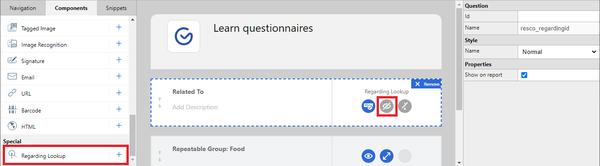
- Add the regarding lookup component to your questionnaire. You can make it invisible in the app if you want. The component behaves just like a simple question, however, it is filled in automatically by the appointment reference from which the questionnaire is opened.
- Click On Load to open the rule editor.
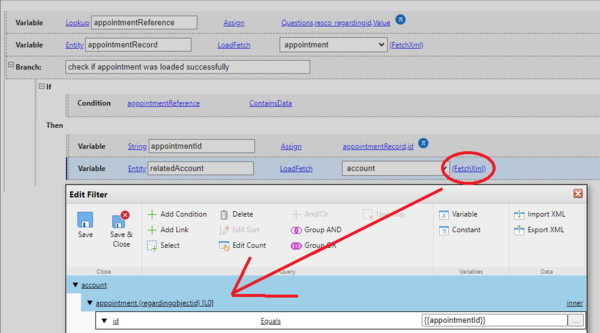
- Create a local variable (lookup type) and load the regarding lookup into it.
- Create a local variable (entity type) and load the parent appointment based on the reference.

- Check if the appointment was loaded successfully, then save the appointment ID to a string variable and use the ID to find the account.
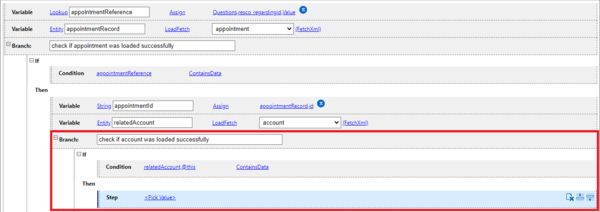
- Check if the account was loaded successfully, then you can start adding steps that fill in questionnaire fields from the related account entity.


Show additional question depending on previous answer using On Change rule
When a user answers a question in a certain way, you might want to display additional questions. For example, married users need to provide the name of their partner.
- Create a group with two questions:
- A single choice question: Are you married? (Answers: Yes, No.)
- A text question: Partner name. Invisible by default
- Select the first question and click On Change.
- Set up a rule with the following logic:
- Add the condition If: If the answer to the are-you-married question is Yes.
- Add Step: Then set visibility for the question partner-name to True.
- Add Else.
- Add Step: Else set visibility for the question partner-name to False.
- Save the rule, questionnaire, and test it in the application.

You can now use fetch variable {{Regarding}} to access (related) entity of activity, if the activity is regarding the record of the questionnaire. This means that you can reuse previous answers from a specific appointment, or a specific asset if opened through an appointment.
- Edit a questionnaire template in Questionnaire Designer.
- Select the top level of the questionnaire to display its properties.
- Set Reuse Answers to your preferred option other than Never.
- In the Reuse Fetch, click Modify.
- The default filter has four conditions.
- Click Add Condition and add the following condition:
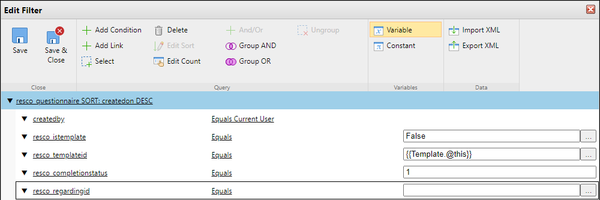
- Click Variable and select Regarding, then click OK.
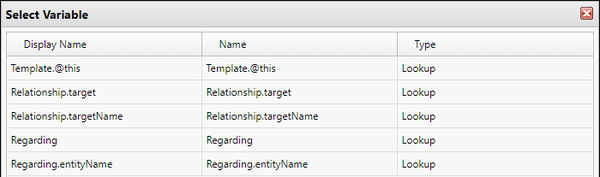
- Click Add Condition and add the following condition:
- Click Save & Close to close the filter editor, then click Save & Close to save the questionnaire template.

