
Localization examples: Difference between revisions
No edit summary |
|||
| Line 4: | Line 4: | ||
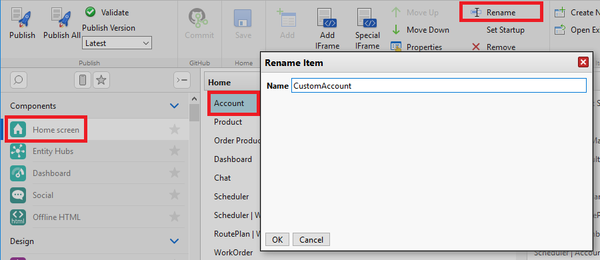
# In Woodford, edit the home screen. Select the entity and click Rename. Use a unique one-word string, for example, "CustomAccount".<br> [[File:Rename item on home screen.png|600px]] | # In Woodford, edit the home screen. Select the entity and click Rename. Use a unique one-word string, for example, "CustomAccount".<br> [[File:Rename item on home screen.png|600px]] | ||
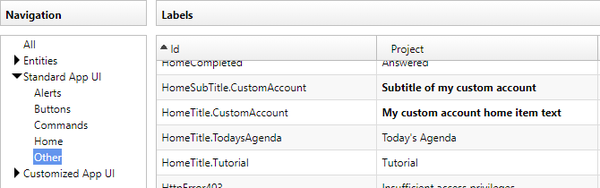
# Select '''Design > [[Localization]]''' from the '''Administrator''' menu and edit a language, Click '''Add''' to add a new localization string. As the ID, use HomeTitle.HomeItemName; in this particular example, HomeTitle.CustomAccount. Add another string for HomeSubTitle.CustomAccount. <br> [[File:Home title custom strings.png|600px]] | # Select '''Design > [[Localization]]''' from the '''Administrator''' menu and edit a language, Click '''Add''' to add a new localization string. As the '''ID''', use "HomeTitle.HomeItemName"; in this particular example, "HomeTitle.CustomAccount". Add another string for HomeSubTitle.CustomAccount. <br> [[File:Home title custom strings.png|600px]] | ||
# If you want to change the icon of the home screen item, select '''Design > [[Images]]''' from the '''Administrator''' menu. Go to the Home directory and click '''Add''' to add a new image. As the image name, use the name you used in step 1, for example "CustomAccount". | # If you want to change the icon of the home screen item, select '''Design > [[Images]]''' from the '''Administrator''' menu. Go to the Home directory and click '''Add''' to add a new image. As the image name, use the name you used in step 1, for example "CustomAccount". | ||
| Line 13: | Line 13: | ||
# In [[Woodford]], go to '''Components > Entity Hubs''' and create a new hub. Give it a unique, one-worded name, for example "myHub". | # In [[Woodford]], go to '''Components > Entity Hubs''' and create a new hub. Give it a unique, one-worded name, for example "myHub". | ||
# Go to '''Components > Entity Hubs''' and add the new hub to your home. | # Go to '''Components > Entity Hubs''' and add the new hub to your home. | ||
# Go to '''Design > Localization''' and add new strings. As '''ID''', use myHub for the title and myHub.SubTitle for the subtitle. | # Go to '''Design > Localization''' and add new strings. As the '''ID''', use "myHub" for the title and "myHub.SubTitle" for the subtitle. | ||
== Change names of views == | == Change names of views == | ||
Revision as of 10:29, 3 December 2019
Entity item on home screen
In this example, we rename the title and subtitle of an entity on home screen, add a custom icon for the item.
- In Woodford, edit the home screen. Select the entity and click Rename. Use a unique one-word string, for example, "CustomAccount".
- Select Design > Localization from the Administrator menu and edit a language, Click Add to add a new localization string. As the ID, use "HomeTitle.HomeItemName"; in this particular example, "HomeTitle.CustomAccount". Add another string for HomeSubTitle.CustomAccount.
- If you want to change the icon of the home screen item, select Design > Images from the Administrator menu. Go to the Home directory and click Add to add a new image. As the image name, use the name you used in step 1, for example "CustomAccount".


Hub item on home screen
In this example, we create a new hub, add it to the home screen with a custom label and icon.
- In Woodford, go to Components > Entity Hubs and create a new hub. Give it a unique, one-worded name, for example "myHub".
- Go to Components > Entity Hubs and add the new hub to your home.
- Go to Design > Localization and add new strings. As the ID, use "myHub" for the title and "myHub.SubTitle" for the subtitle.
Change names of views
TBD
Change names of view buttons and commands
TBD