
Microsoft Fabric: Difference between revisions
Marek Rodak (talk | contribs) |
Marek Rodak (talk | contribs) |
||
| Line 41: | Line 41: | ||
*mergeVersions = True/False | *mergeVersions = True/False | ||
*neutralizeDataTypes = True/False | *neutralizeDataTypes = True/False | ||
;Saving methods: | |||
*mergeVersions = False | |||
Each questionnaire is saved to a table specific for their version. | |||
*merge versions = True | |||
Questionnaires with the same name are merged and saved into one table, despite the version (possibility of evolution conflict). | |||
;Evolution conflicts: | |||
Adding/Removing questions behavior: | |||
*Added question = new column | |||
*Removed question = column stays but null value in new questionnaires. | |||
*Merging questionnaire versions can cause evolution conflicts. Primarily, due to differing data type in one column. If this issue occurs, use fallback neutralizeDataTypes = True. This will cast all columns into string. | |||
Once initial variables are defined, click '''Run all''' in the top panel.<br> | Once initial variables are defined, click '''Run all''' in the top panel.<br> | ||
[[File:RescoProcessingDemo.png|600px]] | [[File:RescoProcessingDemo.png|600px]] | ||
Revision as of 10:07, 11 July 2024
| Warning | Work in progress! We are in the process of updating the information on this page. Subject to change. |
Microsoft Fabric is a unified data analytics platform that provides tools for data movement, processing, ingestion, transformation, real-time event routing, and report generation. It incorporates OneLake, a unified data storage solution, eliminating the need to duplicate data for each data manipulation step. Fabric functions as Software as a Service (SaaS). It combines new and existing components from Power BI, Azure Synapse Analytics, Azure Data Factory, and other services into a unified environment. These components are then tailored to customized user experiences.

Questionnaire data in Fabric
Questionnaires are digital forms, usually running in Resco mobile apps, that allow you to collect data in the field. Microsoft Fabric is a tool designed for data management, and there are two main reasons to consider its integration:
- The size of the collected data
- The size of questionnaire data can grow substantially, growing data storage expenses. Microsoft Fabric offers a cheap alternative for storing large amounts of data.
- Need for structured questionnaire data (AI and BI ready)
- To save storage, questionnaire answers are stored in a serializedanswer column in a JSON format. First, we have to transform this format to create structured data. Here, we can utilize the Fabrics Notebook. Notebook is a multi-language interactive programming tool that executes Spark jobs to transform, process, and visualize data.
The Notebook (script) is developed by Resco and is available for tests. The current script supports template-dependent questionnaires with Flexible or Minimal JSON.
How to import questionnaire data
- To import data, we have to create a Lakehouse (collection of files, folders, and tables that represent a database). Go to Microsoft Fabric and select Synapse Data Engineering experience.
- Create a Lakehouse from the landing page or go to Create in the left panel and select Lakehouse there. To this lakehouse, we import raw questionnaire data; it's a bronze data layer.

- In the lakehouse, click New Dataflow Gen2.

- When Dataflow loads, click Get Data in the top panel and select Dataverse as a new source.
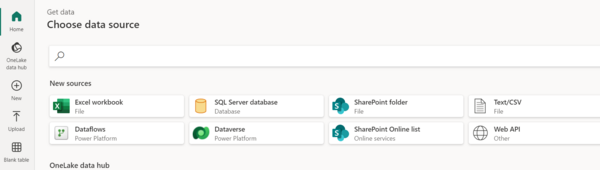
- Fill out the required information to connect to your Dataverse.
- Once connected, select resco_ questionnaire and resco_question (plus tables you need for reporting later).
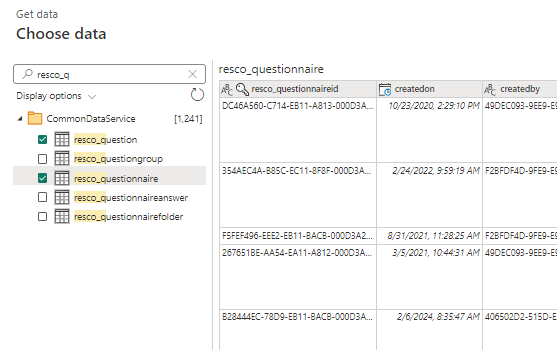
- Check the data destination and Publish the dataflow.
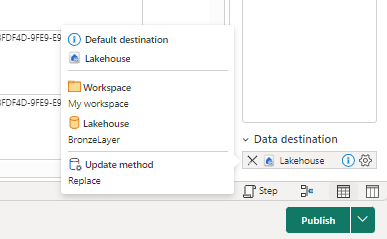


How to import Notebook
Currently, the Notebook that handles the questionnaire data transformation is on-demand. Contact support for more information. The notebook is a script file in .ipynb format.
- Open the workspace while in Data Engineering experience.
- Click New in top panel and then Import notebook.
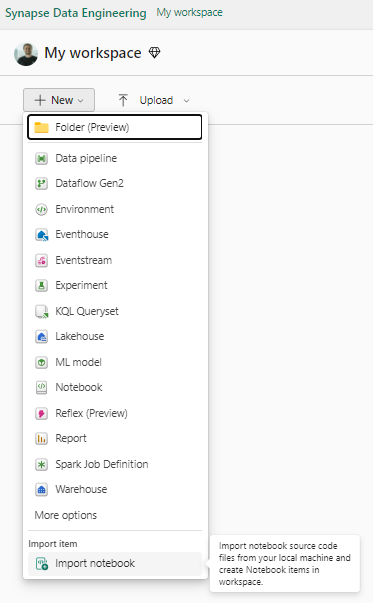
- Click Upload and select the file.

Questionnaire data processing in Notebook
Once the notebook is imported, the data processing can start. Questionnaire data processing consists primarily of parsing JSON in the serializedanswers column. The result of this transformation is a structured table where each column is one question, and each row is one questionnaire.
There are multiple variables that need to be defined before the script can be used.
- Initial variables
- source_lakehouse = "name of bronze layer LakeHouse where we import raw questionnaire data"
- path = " path to bronze LakeHouse .../Tables/"
- destination_lakehouse = "name of the silver layer LakeHouse where we save transformed data"
- save_path = "path to silver LakeHouse ... /Tables/"
- mergeVersions = True/False
- neutralizeDataTypes = True/False
- Saving methods
- mergeVersions = False
Each questionnaire is saved to a table specific for their version.
- merge versions = True
Questionnaires with the same name are merged and saved into one table, despite the version (possibility of evolution conflict).
- Evolution conflicts
Adding/Removing questions behavior:
- Added question = new column
- Removed question = column stays but null value in new questionnaires.
- Merging questionnaire versions can cause evolution conflicts. Primarily, due to differing data type in one column. If this issue occurs, use fallback neutralizeDataTypes = True. This will cast all columns into string.
Once initial variables are defined, click Run all in the top panel.
