
Localization examples: Difference between revisions
No edit summary |
|||
| Line 5: | Line 5: | ||
# In Woodford, edit the home screen. Select the entity and click Rename. Use a unique one-word string, for example, "CustomAccount".<br> [[File:Rename item on home screen.png|600px]] | # In Woodford, edit the home screen. Select the entity and click Rename. Use a unique one-word string, for example, "CustomAccount".<br> [[File:Rename item on home screen.png|600px]] | ||
# Select '''Design > [[Localization]]''' from the '''Administrator''' menu and edit a language, Click '''Add''' to add a new localization string. As the '''ID''', use "HomeTitle.HomeItemName"; in this particular example, "HomeTitle.CustomAccount". Add another string for HomeSubTitle.CustomAccount. <br> [[File:Home title custom strings.png|600px]] | # Select '''Design > [[Localization]]''' from the '''Administrator''' menu and edit a language, Click '''Add''' to add a new localization string. As the '''ID''', use "HomeTitle.HomeItemName"; in this particular example, "HomeTitle.CustomAccount". Add another string for HomeSubTitle.CustomAccount. <br> [[File:Home title custom strings.png|600px]] | ||
# If you want to change the icon of the home screen item, select '''Design > [[Images]]''' from the '''Administrator''' menu. Go to the Home directory and click '''Add''' to add a new image. As the image name, use the name you used in step 1, for example "CustomAccount". | # If you want to change the icon of the home screen item, select '''Design > [[Images]]''' from the '''Administrator''' menu. Go to the Home directory and click '''Add''' to add a new image. As the image name, use the name you used in step 1, for example "CustomAccount". <br> [[File:Home item localization result.png]] | ||
== Hub item on home screen == | == Hub item on home screen == | ||
| Line 15: | Line 15: | ||
# Go to '''Design > Localization''' and add new strings. As the '''ID''', use "myHub" for the title and "myHub.SubTitle" for the subtitle. | # Go to '''Design > Localization''' and add new strings. As the '''ID''', use "myHub" for the title and "myHub.SubTitle" for the subtitle. | ||
# Go to '''Design > Images''' and add the new icon to the Home directory. Use "myHub" as the name. <br> [[File:Adding a custom icon for hub.png|300px]] | # Go to '''Design > Images''' and add the new icon to the Home directory. Use "myHub" as the name. <br> [[File:Adding a custom icon for hub.png|300px]] | ||
# Result: <br> [[File:Home item localization result.png]] | |||
== Rename views == | == Rename views == | ||
Revision as of 12:02, 3 December 2019
Entity item on home screen
In this example, we rename the title and subtitle of an entity on home screen, add a custom icon for the item.
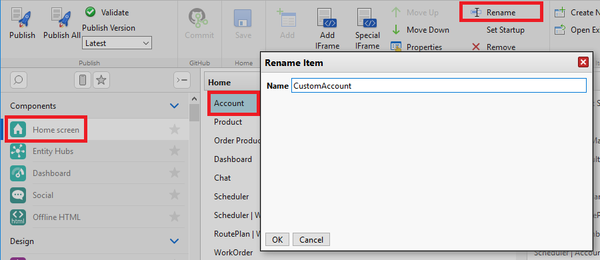
- In Woodford, edit the home screen. Select the entity and click Rename. Use a unique one-word string, for example, "CustomAccount".
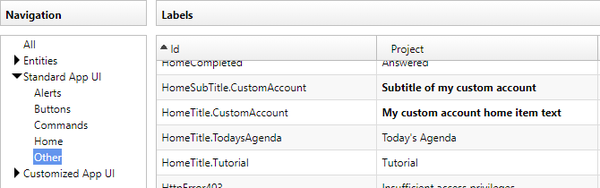
- Select Design > Localization from the Administrator menu and edit a language, Click Add to add a new localization string. As the ID, use "HomeTitle.HomeItemName"; in this particular example, "HomeTitle.CustomAccount". Add another string for HomeSubTitle.CustomAccount.
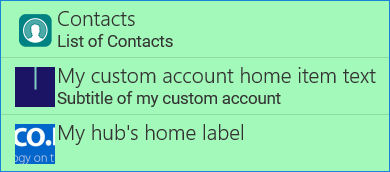
- If you want to change the icon of the home screen item, select Design > Images from the Administrator menu. Go to the Home directory and click Add to add a new image. As the image name, use the name you used in step 1, for example "CustomAccount".


Hub item on home screen
In this example, we create a new hub, add it to the home screen with a custom label and icon.
- In Woodford, go to Components > Entity Hubs and create a new hub. Give it a unique, one-worded name, for example "myHub".
- Go to Components > Home screen and add the new hub to your home.
- Go to Design > Localization and add new strings. As the ID, use "myHub" for the title and "myHub.SubTitle" for the subtitle.
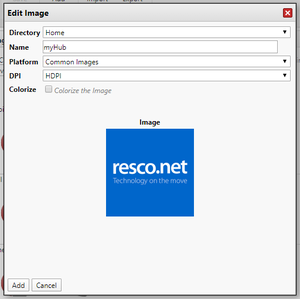
- Go to Design > Images and add the new icon to the Home directory. Use "myHub" as the name.
- Result:

Rename views
Views are internally identified by their names. As a result, renaming views is tricky; see the best practices. In this example, we use localization to change the label of a view in the app.
Change names of view buttons and commands
TBD