
Deep dive: Timesheets: Difference between revisions
m remove <dl><dd> wrapping around video embeds. This breaks the video player. |
|||
| (13 intermediate revisions by 2 users not shown) | |||
| Line 1: | Line 1: | ||
{{Wikipedia|Timesheet}} {{ | {{Wikipedia|Timesheet}} {{Deep TOC}} | ||
Timesheets are a method for tracking the amount of a worker's time spent on each job. The default Resco projects don't include timesheets out-of-the-box. This article describes a simple way of adding timesheets to your organization. It assumes a good working knowledge of Resco and Dynamics ecosystem as well as a certain level of autonomy in designing mobile projects. The main focus is to describe several user experience improvements in more detail, beyond the rudimentary forms and views. | Timesheets are a method for tracking the amount of a worker's time spent on each job. The default Resco projects don't include timesheets out-of-the-box. This article describes a simple way of adding timesheets to your organization. It assumes a good working knowledge of Resco and Dynamics ecosystem as well as a certain level of autonomy in designing mobile projects. The main focus is to describe several user experience improvements in more detail, beyond the rudimentary forms and views. | ||
| Line 5: | Line 5: | ||
You have several options for how to use this and related resources. | You have several options for how to use this and related resources. | ||
{{Badge|Blog}} The [https://www.resco.net/blog/use-resco-and-ms-dynamics-to-configure-timesheets/ blog] introduces the business context and describes how the video is organized. | |||
{{Badge|Webinar|YouTube}} The [https://www.youtube.com/watch?v=Y0c2zMgvt-k video] walks you through the usage of timesheets in the back office and the mobile app. Later it also describes the Woodford customization highlights. | |||
{{Badge|Wiki}} This wiki article summarizes the Woodford configuration steps from the video. They should be easily transferable to other projects and use cases. | |||
== About this solution == | == About this solution == | ||
| Line 60: | Line 63: | ||
#* One for canceled | #* One for canceled | ||
# Use the '''Row''' selector on the '''Properties''' pane to switch between rows. Use an appropriately colored image for each row. | # Use the '''Row''' selector on the '''Properties''' pane to switch between rows. Use an appropriately colored image for each row. | ||
# Click '''[[Row Script]]''' and enter a simple rule that selects the right row depending on the status reason of the record.<br>[[File:Row script rule timesheet entry.png|600px]] | # Click '''[[Row Script]]''' and enter a simple rule that selects the right row depending on the status reason of the record.<br>[[File:Row script rule timesheet entry.png|alt=Row script rule timesheet entry example|600px]] | ||
Demo: | Demo: | ||
{{#ev:youtube|https://www.youtube.com/watch?v=Y0c2zMgvt-k|||||start=1165}} | |||
=== All day button === | === All day button === | ||
| Line 76: | Line 79: | ||
# Click '''Add Button''' to the button to the form. | # Click '''Add Button''' to the button to the form. | ||
# On the '''Properties''' pane, as '''Click Text''', enter "All day". | # On the '''Properties''' pane, as '''Click Text''', enter "All day". | ||
# Click '''Button Click''' and add the following rule:<br>[[File:Allday button rule timesheet entry.png|600px]] | # Click '''Button Click''' and add the following rule:<br>[[File:Allday button rule timesheet entry.png|alt=Allday button rule timesheet entry example|600px]] | ||
Demo: | Demo: | ||
{{#ev:youtube|https://www.youtube.com/watch?v=Y0c2zMgvt-k|||||start=1283}} | |||
=== Clone timesheet entries === | === Clone timesheet entries === | ||
| Line 92: | Line 95: | ||
# Click '''Buttons''', then click '''New Command''' to create a new custom command. | # Click '''Buttons''', then click '''New Command''' to create a new custom command. | ||
# Enter '''Name''' (internal button name) and '''Label''' (what is displayed in the app), then save and close the Row Buttons screen. | # Enter '''Name''' (internal button name) and '''Label''' (what is displayed in the app), then save and close the Row Buttons screen. | ||
# Click '''Button Click''' and enter the following rule:<br>[[File:Timesheet clone button rule.png|600px]] | # Click '''Button Click''' and enter the following rule:<br>[[File:Timesheet clone button rule.png|alt=Timesheet clone button rule example|600px]] | ||
Demo: | Demo: | ||
{{#ev:youtube|https://www.youtube.com/watch?v=Y0c2zMgvt-k|||||start=1398}} | |||
=== View timesheet entries in the calendar === | === View timesheet entries in the calendar === | ||
| Line 109: | Line 112: | ||
# Create or edit a calendar. | # Create or edit a calendar. | ||
# On the '''Views''' tab, click '''Add Entity''' and select Timesheet Entry. | # On the '''Views''' tab, click '''Add Entity''' and select Timesheet Entry. | ||
# On the '''Rules''' tab, select the Timesheet Entry entity and click '''Edit Rule''':<br>[[File:Timesheet entry calendar rule.png|600px]] | # On the '''Rules''' tab, select the Timesheet Entry entity and click '''Edit Rule''':<br>[[File:Timesheet entry calendar rule.png|alt=Timesheet entry calendar rule example|600px]] | ||
Demo: | Demo: | ||
{{#ev:youtube|https://www.youtube.com/watch?v=Y0c2zMgvt-k|||||start=1540}} | |||
=== Timesheet submit confirmation === | === Timesheet submit confirmation === | ||
| Line 123: | Line 126: | ||
# Click '''Show UI''' to display the list of views, forms, and charts for this entity. | # Click '''Show UI''' to display the list of views, forms, and charts for this entity. | ||
# Edit the default form. | # Edit the default form. | ||
# Click '''On Execute''' and enter the following rule:<br>[[File:Timesheet message box rule.png|600px]] | # Click '''On Execute''' and enter the following rule:<br>[[File:Timesheet message box rule.png|alt=Timesheet message box rule example|600px]] | ||
Demo: | Demo: | ||
{{#ev:youtube|https://www.youtube.com/watch?v=Y0c2zMgvt-k|||||start=1653}} | |||
=== Aggregate values === | === Aggregate values === | ||
Goal: Calculate weekly aggregates | Goal: Calculate weekly aggregates | ||
Solution: | Solution: | ||
# Edit the app project in Woodford and select the '''Timesheet''' entity from the '''Project''' menu. | # Edit the app project in Woodford and select the '''Timesheet''' entity from the '''Project''' menu. | ||
# Click '''Show UI''' to display the list of views, forms, and charts for this entity. | # Click '''Show UI''' to display the list of views, forms, and charts for this entity. | ||
# Edit the default form. | # Edit the default form. This form should include an associated list of timesheet entries. | ||
# Select the associated list and click '''Properties'''. Make sure that '''Trigger OnChange event''' is enabled for this list, then close the properties. | |||
# Click '''On Change''' and enter the following rule:<br>[[File:Timesheet calculate aggregates.png|alt=Timesheet calculate aggregates example|600px]] | |||
# This is the FetchXML filter defined in the second line of the rule:<br>[[File:Timesheet filter.png|alt=Timesheet calculate aggregates example:Timesheet filter]] | |||
This is | |||
Demo: | Demo: | ||
{{#ev:youtube|https://www.youtube.com/watch?v=Y0c2zMgvt-k|||||start=1805}} | |||
Latest revision as of 13:38, 19 December 2025

Timesheets are a method for tracking the amount of a worker's time spent on each job. The default Resco projects don't include timesheets out-of-the-box. This article describes a simple way of adding timesheets to your organization. It assumes a good working knowledge of Resco and Dynamics ecosystem as well as a certain level of autonomy in designing mobile projects. The main focus is to describe several user experience improvements in more detail, beyond the rudimentary forms and views.
How to use this resource
You have several options for how to use this and related resources.
Blog The blog introduces the business context and describes how the video is organized.
YouTube The video walks you through the usage of timesheets in the back office and the mobile app. Later it also describes the Woodford customization highlights.
Wiki This wiki article summarizes the Woodford configuration steps from the video. They should be easily transferable to other projects and use cases.
About this solution
- Technology used
- Resco mobile app
- Woodford
- Microsoft Dynamics 365/Dataverse
- Power App
- Power Automate
- Custom tables (entities) used
- Timesheet
- Back-office manager creates a new timesheet ("Open").
- Mobile worker submits the completed timesheet in the app ("Submitted").
- Back-office manager reviews and approves it ("Approved").
- Timesheet Entry
- Each timesheet consists of multiple timesheet entries. Entries are created by the mobile worker ("Open") and approved by the manager ("Approved").
- Project
- Each timesheet is assigned to a specific project. Projects can be active or inactive.
- Project Category
- Each project is assigned to a specific project category. Categories can be active or inactive.
- Standard (system) tables used
- User (employee)
- Account (customer)
MVP
Describing how to build the minimum viable product is out of the scope of this article.
- For this demonstration, we have prepared a Dynamics solution that includes all the custom entities, views, and forms on the backend side (Dynamics). If you are interested in this part, contact Resco sales for more information.
- Regarding the mobile portion, it is built in Woodford and requires a basic knowledge of Woodford:
- Enable the custom entities in Woodford.
- Create forms and views for the new entities.
- If you want to learn how to create forms and views, check Resco Academy, for example the Woodford Basics course.
UX improvements
In this section, we describe several optional additions that improve the user experience of mobile users.
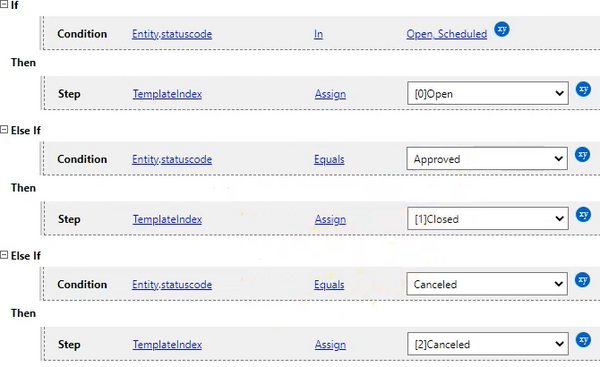
Color code timesheet entries
Goal: Visually distinguish between timesheet entries depending on their status.
Solution:
- Edit the app project in Woodford and select the Timesheet Entry entity from the Project menu.
- Click Show UI to display the list of views, forms, and charts for this entity.
- Edit the view "All entries".
- Clone the default row two times to create three rows:
- One for open
- One for closed
- One for canceled
- Use the Row selector on the Properties pane to switch between rows. Use an appropriately colored image for each row.
- Click Row Script and enter a simple rule that selects the right row depending on the status reason of the record.

Demo:
All day button
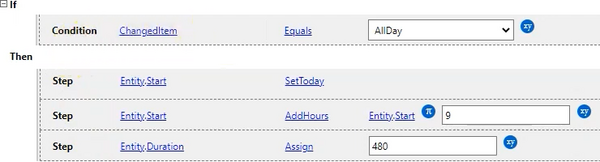
Goal: Create the "All day" button on the timesheet entry form.
Solution:
- Edit the app project in Woodford and select the Timesheet Entry entity from the Project menu.
- Click Show UI to display the list of views, forms, and charts for this entity.
- Edit the form.
- Click Add Button to the button to the form.
- On the Properties pane, as Click Text, enter "All day".
- Click Button Click and add the following rule:

Demo:
Clone timesheet entries
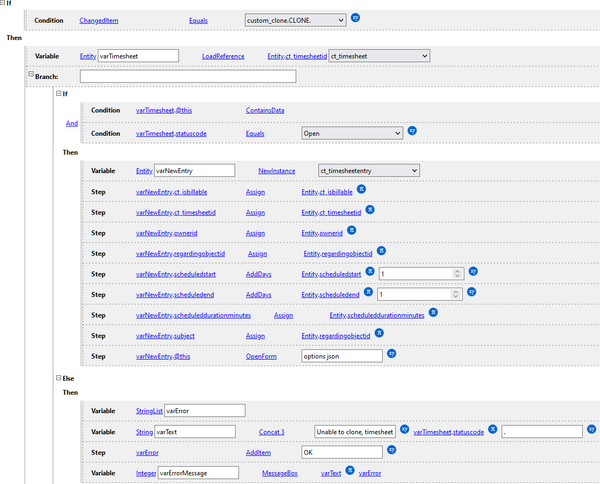
Goal: Add Clone button to Timesheet Entries view.
Solution:
- Edit the app project in Woodford and select the Timesheet Entry entity from the Project menu.
- Click Show UI to display the list of views, forms, and charts for this entity.
- Edit the view "All entries".
- Click Buttons, then click New Command to create a new custom command.
- Enter Name (internal button name) and Label (what is displayed in the app), then save and close the Row Buttons screen.
- Click Button Click and enter the following rule:

Demo:
View timesheet entries in the calendar
Goal: Add timesheet entries to calendar. Make sure that entries use different color depending on the status.
Solution:
- Edit the app project in Woodford and select the Timesheet Entry entity from the Project menu.
- Click Show UI to display the list of views, forms, and charts for this entity.
- Create a new public view for calendar. When editing the view, make sure that the date fields for start time and end time are correctly defined.
- Then, select Calendar from the Project menu.
- Create or edit a calendar.
- On the Views tab, click Add Entity and select Timesheet Entry.
- On the Rules tab, select the Timesheet Entry entity and click Edit Rule:


Demo:
Timesheet submit confirmation
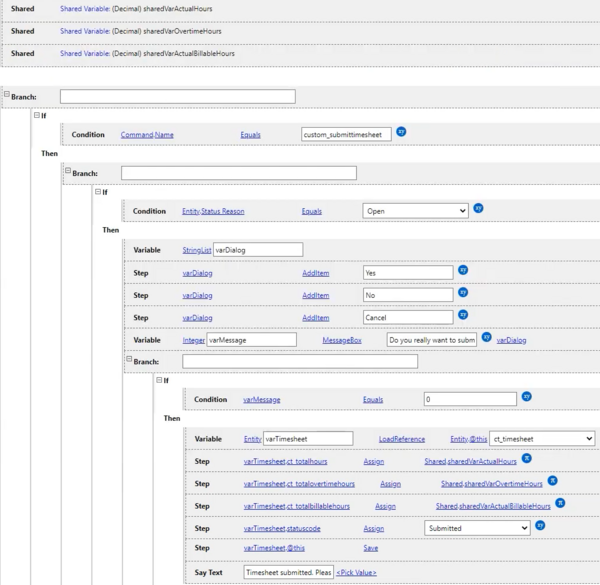
Goal: Add a confirmation message box when submitting timesheets for approval.
Solution:
- Edit the app project in Woodford and select the Timesheet entity from the Project menu.
- Click Show UI to display the list of views, forms, and charts for this entity.
- Edit the default form.
- Click On Execute and enter the following rule:

Demo:
Aggregate values
Goal: Calculate weekly aggregates
Solution:
- Edit the app project in Woodford and select the Timesheet entity from the Project menu.
- Click Show UI to display the list of views, forms, and charts for this entity.
- Edit the default form. This form should include an associated list of timesheet entries.
- Select the associated list and click Properties. Make sure that Trigger OnChange event is enabled for this list, then close the properties.
- Click On Change and enter the following rule:

- This is the FetchXML filter defined in the second line of the rule:



Demo: