
Releases/Autumn 2021: Difference between revisions
Marek Rodak (talk | contribs) No edit summary |
|||
| (4 intermediate revisions by 2 users not shown) | |||
| Line 4: | Line 4: | ||
* [https://www.resco.net/blog/autumn-update-2021-preview/ Autumn Update 2021 preview] {{Badge|Blog}} | * [https://www.resco.net/blog/autumn-update-2021-preview/ Autumn Update 2021 preview] {{Badge|Blog}} | ||
{{YT| | {{YT|rGMAPxjJszA}} | ||
== resco.Houston == | == resco.Houston == | ||
| Line 15: | Line 15: | ||
Houston mobile user interface now looks nicer on larger devices in landscape mode, such as tablets. | Houston mobile user interface now looks nicer on larger devices in landscape mode, such as tablets. | ||
[[File:Houston tablet ui.png|600px]] | [[File:Houston tablet ui.png|alt=Guides library overview|600px]] | ||
=== Draft guides in the app === | === Draft guides in the app === | ||
| Line 21: | Line 21: | ||
Mobile users have direct access to the device or equipment that they work with. With this release, they can draft guides directly in their mobile app. They can take photos, add some basic instructions, and upload the guide to the backend. Knowledge managers can then take over, add more detailed instructions, polish up the guide, and then publish it to make it generally available. | Mobile users have direct access to the device or equipment that they work with. With this release, they can draft guides directly in their mobile app. They can take photos, add some basic instructions, and upload the guide to the backend. Knowledge managers can then take over, add more detailed instructions, polish up the guide, and then publish it to make it generally available. | ||
[[File:Houston guide 1.png|300px]] [[File:Houston guide 2.png|300px]] | [[File:Houston guide 1.png|alt=create a guide in the app 1|300px]] [[File:Houston guide 2.png|alt=create a guide in the app 2|300px]] | ||
=== Guides library === | === Guides library === | ||
| Line 27: | Line 27: | ||
The library of guides in Resco Houston has been redesigned. It can now be viewed as a list or as a grid, includes guide categories for easy filtering, sorting, and generally provides a much smoother and faster experience. | The library of guides in Resco Houston has been redesigned. It can now be viewed as a list or as a grid, includes guide categories for easy filtering, sorting, and generally provides a much smoother and faster experience. | ||
[[File:Houston library.png|600px]] | [[File:Houston library.png|alt=guides library overview|600px]] | ||
== Platform == | == Platform == | ||
| Line 47: | Line 47: | ||
You can now reuse any existing job or workflow in your process. If you need to iterate through multiple records or just call multiple jobs from a single job, you can simply use the Server.Execute step: | You can now reuse any existing job or workflow in your process. If you need to iterate through multiple records or just call multiple jobs from a single job, you can simply use the Server.Execute step: | ||
[[File:Server execute.png]] | [[File:Server execute.png|alt=server execute step example]] | ||
Job or workflow must be created already. If you would like to iterate through the same process, it must be saved first. The number of iterations is limited to 8192. | Job or workflow must be created already. If you would like to iterate through the same process, it must be saved first. The number of iterations is limited to 8192. | ||
| Line 63: | Line 63: | ||
You can now initiate and receive video calls directly in the Dynamics backend. See [[Houston_video_calls#Set_up_Dynamics|how to set it up]]. | You can now initiate and receive video calls directly in the Dynamics backend. See [[Houston_video_calls#Set_up_Dynamics|how to set it up]]. | ||
[[File:Call via houston from dynamics.png|600px]] | [[File:Call via houston from dynamics.png|alt=Call via houston from dynamics(depricated)|600px]] | ||
=== Tree view === | === Tree view === | ||
| Line 69: | Line 69: | ||
The [[tree view]] introduced in the previous release has been updated to include a search function. | The [[tree view]] introduced in the previous release has been updated to include a search function. | ||
[[File:Searchable asset tree.png|600px]] | [[File:Searchable asset tree.png|alt=Searchable tree view|600px]] | ||
=== Sync with Business Central === | === Sync with Business Central === | ||
| Line 78: | Line 78: | ||
* You can now synchronize with the remote server; either on-demand using a button in Woodford, or you can schedule a periodic [[server processes|server process]]. | * You can now synchronize with the remote server; either on-demand using a button in Woodford, or you can schedule a periodic [[server processes|server process]]. | ||
[[File:Nightly sync job.png|400px]] | [[File:Nightly sync job.png|alt=sync plan with bussines central|400px]] | ||
=== Change in behavior: Execute JS from rules === | === Change in behavior: Execute JS from rules === | ||
| Line 90: | Line 90: | ||
With this release, you can [[Questionnaire_Designer#Importing_questions|import questions from specially prepared CSV or Excel files]] into the Questionnaire Designer as new templates. | With this release, you can [[Questionnaire_Designer#Importing_questions|import questions from specially prepared CSV or Excel files]] into the Questionnaire Designer as new templates. | ||
[[File:Select which questions to import.png|400px]] | [[File:Select which questions to import.png|alt=create questionnaire template by importing Excel/CSV file (select questions to import) 400px]] | ||
=== Collapsible question groups === | === Collapsible question groups === | ||
| Line 100: | Line 100: | ||
Questionnaire reports have already supported grid layout for questions, i.e., multiple questions could be arranged in a row. With this release, we're introducing a grid layout when answering questionnaires. This behavior is configured on the [[Questionnaire_Designer#Properties_pane|Properties pane]]: select the top-level element of the template and set '''Layout Type''' to '''Grid'''. See [[Questionnaire_Designer#Grid_layout|grid layout]] for more information. | Questionnaire reports have already supported grid layout for questions, i.e., multiple questions could be arranged in a row. With this release, we're introducing a grid layout when answering questionnaires. This behavior is configured on the [[Questionnaire_Designer#Properties_pane|Properties pane]]: select the top-level element of the template and set '''Layout Type''' to '''Grid'''. See [[Questionnaire_Designer#Grid_layout|grid layout]] for more information. | ||
[[File:Questions in multiple columns.png|600px]] | [[File:Questions in multiple columns.png|alt=Grid layout for questions: questions in multiple columns|600px]] | ||
{{Note|After upgrading to release 14.2, you might need to [[Publishing app projects|republish your app project]] in Woodford before you can see questions in a grid layout in the app.}} | {{Note|After upgrading to release 14.2, you might need to [[Publishing app projects|republish your app project]] in Woodford before you can see questions in a grid layout in the app.}} | ||
=== Multiple images question === | === Multiple images question === | ||
[[File:Image media properties in the designer.png|thumb|right]] | [[File:Image media properties in the designer.png|alt= Image/Media question type properties in the QD|thumb|right]] | ||
The '''Image''' question has been renamed to '''Image/Media'''. Fortunately, this is not the only change; this question type now offers additional functions: | The '''Image''' question has been renamed to '''Image/Media'''. Fortunately, this is not the only change; this question type now offers additional functions: | ||
| Line 111: | Line 111: | ||
* In the case of images, you can configure maximum width and/or height in pixels ('''Max Width''', '''Max Height'''). | * In the case of images, you can configure maximum width and/or height in pixels ('''Max Width''', '''Max Height'''). | ||
* You can set maximum file size in kilobytes (larger files are rejected) ('''Max Size'''). | * You can set maximum file size in kilobytes (larger files are rejected) ('''Max Size'''). | ||
* In the questionnaire, the images and media are displayed as thumbnails.<br>[[File:Media thumbnails in the questionnaire.png|400px]] | * In the questionnaire, the images and media are displayed as thumbnails.<br>[[File:Media thumbnails in the questionnaire.png|alt=Images/Media displayed as a thumbnail in the questionnaire|400px]] | ||
* Thumbnails are also used in mobile reports.<br>[[File:Media thumbnails in mobile report.png|400px]] | * Thumbnails are also used in mobile reports.<br>[[File:Media thumbnails in mobile report.png|alt=Images/Media displayed as a thumbnail in the mobile report|400px]] | ||
* [[Results Viewer]] shows the images as a gallery.<br>[[File:Media gallery in the result viewer.png|400px]] | * [[Results Viewer]] shows the images as a gallery.<br>[[File:Media gallery in the result viewer.png|alt=Images/Media displayed as a galery in the result viewer|400px]] | ||
=== Finer control over commands === | === Finer control over commands === | ||
| Line 119: | Line 119: | ||
When editing commands in a questionnaire, the '''Run report''' command is now always visible in the '''On Can Execute''' and '''On Execute''' rules. This allows you to write rules that, for example, disable the '''Run report''' command for completed questionnaires: | When editing commands in a questionnaire, the '''Run report''' command is now always visible in the '''On Can Execute''' and '''On Execute''' rules. This allows you to write rules that, for example, disable the '''Run report''' command for completed questionnaires: | ||
[[File:Disable run report for completed questionnaires.png|600px]] | [[File:Disable run report for completed questionnaires.png|alt=Disable run report for completed questionnaires, On Can Execute rule example|600px]] | ||
There's now a new command called '''View report''', suitable for completed questionnaires, that displays existing reports. | There's now a new command called '''View report''', suitable for completed questionnaires, that displays existing reports. | ||
| Line 138: | Line 138: | ||
QR codes are very useful if you want to make your reports convenient for digital processing using any type of optical scanner such as a camera on your mobile phone. With this release, you can easily generate QR codes from report data and add them to the report. In addition to the universal QR codes, you can generate a payment order compatible with [https://bysquare.com/en/pay-by-square/ bysquare.com]. | QR codes are very useful if you want to make your reports convenient for digital processing using any type of optical scanner such as a camera on your mobile phone. With this release, you can easily generate QR codes from report data and add them to the report. In addition to the universal QR codes, you can generate a payment order compatible with [https://bysquare.com/en/pay-by-square/ bysquare.com]. | ||
[[File:Paybysquare.png]] | [[File:Paybysquare.png|alt=QR codes in reports: Pay by Square - QR type]] | ||
On the report, QR codes are handled like a special type of image, hence the same features, formatting options, and limitations apply. In this release, QR codes are not supported when reports are generated from the web interface or in mobile report preview. | On the report, QR codes are handled like a special type of image, hence the same features, formatting options, and limitations apply. In this release, QR codes are not supported when reports are generated from the web interface or in mobile report preview. | ||
[[File:Mobile report with qr.png|600px]] | [[File:Mobile report with qr.png|alt=QR codes in reports: Mobile report with QR sample|600px]] | ||
See [[Report Designer#QR_codes|Report Designer]] for more information. | See [[Report Designer#QR_codes|Report Designer]] for more information. | ||
| Line 154: | Line 154: | ||
== Route plan and Routes AI == | == Route plan and Routes AI == | ||
* [[Route plan]] configuration in Woodford now includes a new parameter '''Activity Name Field''' which allows you to define which field is displayed as the title of the record in the list and on the map.<br>[[File:Edit route plan.png|600px]] | * [[Route plan]] configuration in Woodford now includes a new parameter '''Activity Name Field''' which allows you to define which field is displayed as the title of the record in the list and on the map.<br>[[File:Edit route plan.png|alt=Route Plan: Edit route plan Activity Name Field option|600px]] | ||
* Route plan has considerable configuration options in Woodford, but some customers need even more control and automation. For this reason, we have brought support for [[Resco JavaScript Bridge]] to route plans. Attach a script to the route plan configuration in Woodford.<br>[[File:Route plan iframe.png|600px]] | * Route plan has considerable configuration options in Woodford, but some customers need even more control and automation. For this reason, we have brought support for [[Resco JavaScript Bridge#Route_plan|JSBridge]] to route plans. Attach a script to the route plan configuration in Woodford.<br>[[File:Route plan iframe.png|alt=jsbridge support for the route plan (route plan iframe)600px]] | ||
* Mobile users can now optimize their routes even if there's an incomplete fixed-time appointment (ongoing or past). | * Mobile users can now optimize their routes even if there's an incomplete fixed-time appointment (ongoing or past). | ||
* [[Routes AI]] now considers traffic information when optimizing routes. When optimizing current tasks, live traffic information is used. When optimizing tasks for later days, historical data is used. | * [[Routes AI]] now considers traffic information when optimizing routes. When optimizing current tasks, live traffic information is used. When optimizing tasks for later days, historical data is used. | ||
== RealWear == | == RealWear == | ||
| Line 172: | Line 170: | ||
To improve the usability of the [[Schedule Board]], we have moved the list of sources from the top row to the right pane. | To improve the usability of the [[Schedule Board]], we have moved the list of sources from the top row to the right pane. | ||
[[File:Scheduling in action.png|600px]] | [[File:Scheduling in action.png|alt=Schedule board: Scheduling in action sample|600px]] | ||
== Business Process Flow improvements == | == Business Process Flow improvements == | ||
Latest revision as of 13:48, 21 November 2023
The Autumn 2021 release (14.2) was released on September 28, 2021.
resco.Houston
resco.Houston, a product for frontline workers with a knowledge library and augmented-reality remote assistance calls, has received several improvements. Watch the latest video:
New tablet UI
Houston mobile user interface now looks nicer on larger devices in landscape mode, such as tablets.

Draft guides in the app
Mobile users have direct access to the device or equipment that they work with. With this release, they can draft guides directly in their mobile app. They can take photos, add some basic instructions, and upload the guide to the backend. Knowledge managers can then take over, add more detailed instructions, polish up the guide, and then publish it to make it generally available.


Guides library
The library of guides in Resco Houston has been redesigned. It can now be viewed as a list or as a grid, includes guide categories for easy filtering, sorting, and generally provides a much smoother and faster experience.

Platform
Save API calls when syncing attachments
You can now download multiple attachments in one batch during synchronization to save some API calls and potentially even improve sync performance.
Set maximum image size for upload
You can now set the maximum resolution for images you upload to Resco mobile apps in the parameter Upload Image Size.
Upload multiple files
Uploading files one by one can get tedious and is prone to errors. With this release, users can upload multiple documents at once. This feature is available for Windows 7 and Windows 10 versions of Resco mobile apps. It is automatically enabled if the option Select File is checked on Associated tab properties.
Server-side business logic improvements
You can now reuse any existing job or workflow in your process. If you need to iterate through multiple records or just call multiple jobs from a single job, you can simply use the Server.Execute step:

Job or workflow must be created already. If you would like to iterate through the same process, it must be saved first. The number of iterations is limited to 8192.
In addition to that, the documentation for Resco Cloud server-side business logic was greatly expanded in recent months. You can now read about
- Server processes (no-code)
- Plug-in assemblies (C# scripts)
Salesforce API update
Resco is now compatible with the newest Salesforce API (v52.0). Some new standard objects introduced in recent Salesforce releases are now visible in Woodford and can be used in the mobile app.
Video calls in Dynamics
You can now initiate and receive video calls directly in the Dynamics backend. See how to set it up.

Tree view
The tree view introduced in the previous release has been updated to include a search function.

Sync with Business Central
The Integrations function of Woodford, introduced in the previous release as a preview, now offers more:
- When you establish a new connection to a Business Central server, many mappings and settings are preconfigured automatically.
- You can now set up Sync Filter to control which records should be synchronized.
- You can now synchronize with the remote server; either on-demand using a button in Woodford, or you can schedule a periodic server process.

Change in behavior: Execute JS from rules
For advanced business logic scenarios, you have the option to Execute JavaScript from rules. Before this release, values returned from JSBridge were wrapped in an extra set of quotation marks (for example, "123" for numbers or ""text"" for strings). After the release, one pair of quotation marks is gone (123, "text"). If you're switching from an older version of JSBridge.js, please update your scripts.
Questionnaires
Create questionnaire templates by importing Excel/CSV files
With this release, you can import questions from specially prepared CSV or Excel files into the Questionnaire Designer as new templates.

Collapsible question groups
Question groups in your questionnaires can now collapse when answering questionnaires. Only a single question group remains expanded to reduce scrolling and focus the attention of the mobile user on the current job. This behavior is configured on the Properties pane: select the top-level element of the template and modify the value Group Expanding.
Grid layout for questions
Questionnaire reports have already supported grid layout for questions, i.e., multiple questions could be arranged in a row. With this release, we're introducing a grid layout when answering questionnaires. This behavior is configured on the Properties pane: select the top-level element of the template and set Layout Type to Grid. See grid layout for more information.

| Note | After upgrading to release 14.2, you might need to republish your app project in Woodford before you can see questions in a grid layout in the app. |
Multiple images question

The Image question has been renamed to Image/Media. Fortunately, this is not the only change; this question type now offers additional functions:
- You can now answer it with multiple images or files. The maximum number is configurable in the properties of image-type questions (Max Count).
- In the case of images, you can configure maximum width and/or height in pixels (Max Width, Max Height).
- You can set maximum file size in kilobytes (larger files are rejected) (Max Size).
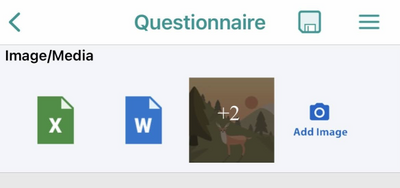
- In the questionnaire, the images and media are displayed as thumbnails.
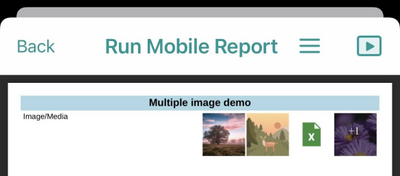
- Thumbnails are also used in mobile reports.
- Results Viewer shows the images as a gallery.



Finer control over commands
When editing commands in a questionnaire, the Run report command is now always visible in the On Can Execute and On Execute rules. This allows you to write rules that, for example, disable the Run report command for completed questionnaires:

There's now a new command called View report, suitable for completed questionnaires, that displays existing reports.
Additionally, if a custom command has not been defined in the rules, the app will now look also in the attached JSBridge file (if any).
Reports
Configure report generation
Earlier this year, we have added the option to configure the behavior of the Run Report command in the app. Arguably, configuration via a JSON string in the On Execute rule was not the most user-friendly option. To remedy this situation, we have now added a graphical user interface for this configuration. In this release, this GUI is available for form commands in Woodford.
In addition, there's also a new parameter. You can configure Immediate action that is performed when users generate the report. Use "SaveAndClose" to save the generated report immediately.
See Configure Run Report command for more information.
QR codes in reports
QR codes are very useful if you want to make your reports convenient for digital processing using any type of optical scanner such as a camera on your mobile phone. With this release, you can easily generate QR codes from report data and add them to the report. In addition to the universal QR codes, you can generate a payment order compatible with bysquare.com.

On the report, QR codes are handled like a special type of image, hence the same features, formatting options, and limitations apply. In this release, QR codes are not supported when reports are generated from the web interface or in mobile report preview.

See Report Designer for more information.
Results Viewer
The export function in the Results Viewer, redesigned in the previous release, has received better support for larger questionnaires:
- Option to select/deselect all questions for exporting.
- Option to select/deselect entire groups of questions.
Route plan and Routes AI
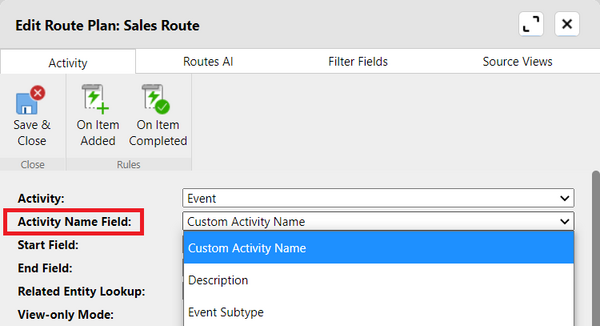
- Route plan configuration in Woodford now includes a new parameter Activity Name Field which allows you to define which field is displayed as the title of the record in the list and on the map.

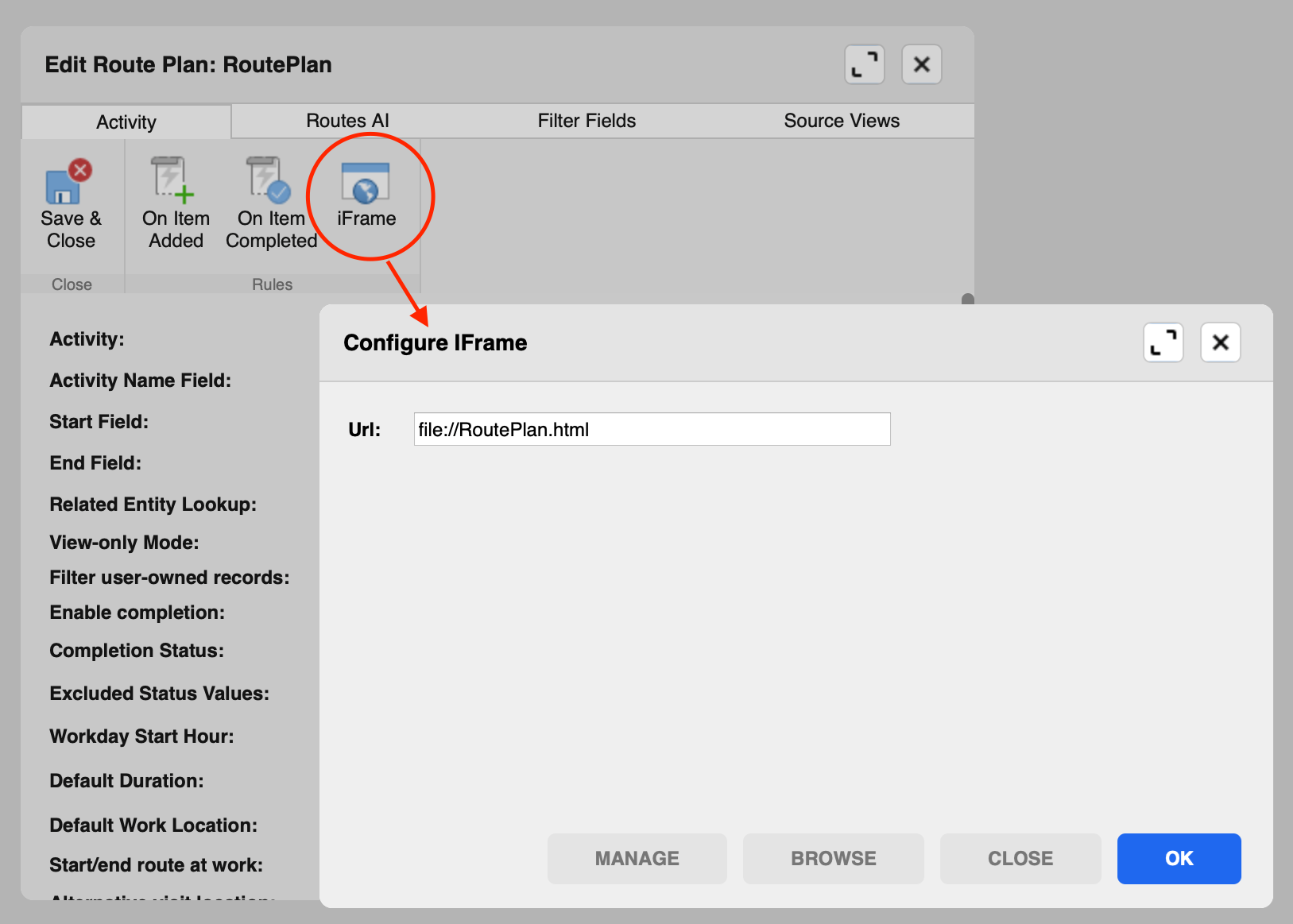
- Route plan has considerable configuration options in Woodford, but some customers need even more control and automation. For this reason, we have brought support for JSBridge to route plans. Attach a script to the route plan configuration in Woodford.

- Mobile users can now optimize their routes even if there's an incomplete fixed-time appointment (ongoing or past).
- Routes AI now considers traffic information when optimizing routes. When optimizing current tasks, live traffic information is used. When optimizing tasks for later days, historical data is used.
RealWear
Resco added support for Resco Inspections on RealWear's head-mounted tablet HMT-1 several months ago. In this release, we have overhauled the user interface to make answering questionnaires even easier.
Schedule Board
To improve the usability of the Schedule Board, we have moved the list of sources from the top row to the right pane.

Business Process Flow improvements
- In the previous release, we have introduced better support of Dynamics Business Process Flows in Resco mobile apps in offline mode.
- In this release, you can enhance BPF with additional business logic via JSBridge.