
Device control: Difference between revisions
Created page with "Administrators can use Woodford to display a list of devices that are synchronized with your CRM. Select '''Device control''' from the '''Administration''' menu of Woodf..." |
Marek Rodak (talk | contribs) No edit summary |
||
| (22 intermediate revisions by one other user not shown) | |||
| Line 1: | Line 1: | ||
Administrators can use [[Woodford]] to display | Administrators can use [[Woodford]] to display and manage devices synchronized with your CRM. You can see what app version are the mobile users using, when they have synced their app, and how did the sync go. Admins can also remotely lock or wipe the app for mobile users, or assign security policies to users. To read more about the [[MDM]] features built-in in the [[Resco platform]] from a business point of view, see [[enterprise security]]. | ||
Select '''Device control''' from the '''Administration''' menu of Woodford to display | Select '''Device control''' from the '''Administration''' menu of Woodford to display: | ||
* list of security policies | |||
* list of devices associated with each security policy | |||
Check '''Lock''' if you want to lock the application on a particular device. Locked application does not start. | Toggle the arrow in the security policy line to show or hide devices using that policy. | ||
{{YT|W92CSywVAv4}} | |||
== Device details == | |||
The following information is available about each connected device. | |||
[[File:Device control.png|alt=Device control overview|600px]] | |||
; Current User, Business Unit: Name of the user currently using the device and their business unit | |||
; Device Name: Name of the device; click the device name to display also the ID and the operating system of the device | |||
; App Version: Version of the [[Resco Mobile CRM]] app installed on the device | |||
; Lock, Wipe, Full Sync: Tools for remote management of devices | |||
; Device State: State of the device’s security (OK, locked, or wiped) | |||
; Synchronized On: Date of the most recent synchronization. | |||
; Sync Result: Icon showing the result of the last sync. Click the icon to access the most recent synchronization logs. | |||
:[[File:Sync result.png|alt=Device control:Sync result]] | |||
; Sync Stats: Shows the most important statistics of the last sync. | |||
Check '''Lock''' if you want to lock the application on a particular device. [[Locked application]] does not start. | |||
Check '''Wipe''' if you want to delete the local database on a device, including server URL and user credentials. | Check '''Wipe''' if you want to delete the local database on a device, including server URL and user credentials. | ||
Check '''Full Sync''' if you want to ensure that the next synchronization of that device will be a full synchronization. This checkbox will be disabled automatically after full synchronization finishes. What will happen is that the user changes will be uploaded, local Mobile CRM app database will be deleted and initial, full synchronization will be performed. If there are unsynchronized changes or Sync Errors, e. | Check '''Full Sync''' if you want to ensure that the next synchronization of that device will be a full synchronization. This checkbox will be disabled automatically after full synchronization finishes. What will happen is that the user changes will be uploaded, local Mobile CRM app database will be deleted and initial, full synchronization will be performed. If there are unsynchronized changes or Sync Errors, i.e., synchronization conflicts waiting for resolving, Force Full Sync will not be performed until these conflicts are resolved. | ||
* <small>In some situations, for example, if there's an error in the app project, or when server metadata change without updating the app project, it can happen that local data cannot be uploaded. In these cases, you can check '''Full Sync''' and then click '''Force and Discard Device Changes''' to ignore local changes completely.</small> | |||
If there is a permission change on user’s security role, this change will be applied only with full synchronization. The easiest way to get these changes applied, is to use the Force Full Sync for all devices that users with the updated security role are using. | If there is a permission change on user’s security role, this change will be applied only with full synchronization. The easiest way to get these changes applied, is to use the Force Full Sync for all devices that users with the updated security role are using. | ||
{{Note|With Android and iOS platforms, the push notifications are used for the Lock and Wipe and the device is Locked or Wiped out immediately (or after application start) when the device connects to the internet. Other platforms require performing synchronization or changing the Security policy.}} | {{Note|With Android and iOS platforms, the push notifications are used for the Lock and Wipe and the device is Locked or Wiped out immediately (or after application start) when the device connects to the internet. Other platforms require performing synchronization or changing the Security policy.}} | ||
== Toolbar functions == | == Toolbar functions == | ||
; New | ; New Policy: Create a new security policy. | ||
; Edit: | ; Edit | ||
: When you edit a device, you can select a different security policy, lock, wipe, or force full synchronization. | |||
: When you edit a policy, you can edit its settings. | |||
; Delete | ; Delete | ||
: When you delete a device, the device is assigned the default policy when the device next synchronizes with the server. | : When you delete a device, the device is assigned the default policy when the device next synchronizes with the server. | ||
: When you delete a security policy, you need to assign devices to another policy. Security policy cannot be deleted if there are devices assigned to it. | : When you delete a security policy, you need to assign devices to another policy. Security policy cannot be deleted if there are devices assigned to it. | ||
; Export: Download a .csv file with the list of devices. | ; Export: Download a .csv file with the list of devices. | ||
; Sync | ; Sync Log: Display a list of synchronization logs of a device. | ||
== Security policy == | == Security policy == | ||
[[File:New security policy.png|alt=Device control:security policy|thumb|right|200px|Create security policies]] | |||
A security policy is a set of properties that are applied to all devices for which the policy is set. | A security policy is a set of properties that are applied to all devices for which the policy is set. | ||
Security policy properties are in these groups: | Security policy properties are in these groups: | ||
; Application Session | |||
: '''Require Login after X minutes of inactivity''' – After defined time in minutes, the Mobile CRM application asks for the password to continue using it. | |||
; Check Security Policy | ; Check Security Policy | ||
: At Application Login – Mobile CRM application checks whether there is a change in the security policy at the application login. Login is performed either at the start of the application or if user enters password to log in to the application. | : '''At Application Login''' – Mobile CRM application checks whether there is a change in the security policy at the application login. Login is performed either at the start of the application or if user enters a password to log in to the application. | ||
: Every X Hours – Security Policy is checked periodically after defined time in hours. | : '''Every X Hours''' – Security Policy is checked periodically after defined time in hours. | ||
{{Note|If none of these options are used, the policy is downloaded only at synchronization.}} | {{Note|If none of these options are used, the policy is downloaded only at synchronization.}} | ||
; Lock Application | ; [[Locked application|Lock Application]] | ||
: Lock Application – If this option is enabled, all devices under this policy will be locked and the application cannot be used unless the device has a different policy assigned. | : '''Lock Application''' – If this option is enabled, all devices under this policy will be locked and the application cannot be used unless the device has a different policy assigned. | ||
: If no server contact after X hours – Application is locked if it did not connect to the CRM server either in matter of checking the policy or synchronization, or online mode access. | : '''If no server contact after X hours''' – Application is locked if it did not connect to the CRM server either in matter of checking the policy or synchronization, or online mode access. The application can be unlocked by entering the correct password. Also, internet access is required in this case. | ||
: During non-business hours – Application is locked if the current time is outside of the given interval. | : '''During non-business hours''' – Application is locked if the current time is outside of the given interval. | ||
: Invalid password X times – If a wrong login password is entered for a specified number of times, the Mobile CRM application locks up (Admin lock) and can be unlocked in the Woodford’s Security list of devices. The locked device will have a Lock checkbox enabled and needs to be unchecked. | : '''Invalid password X times''' – If a wrong login password is entered for a specified number of times, the Mobile CRM application locks up (Admin lock) and can be unlocked in the Woodford’s Security list of devices. The locked device will have a Lock checkbox enabled and needs to be unchecked. | ||
; Wipe Application | ; Wipe Application | ||
: Wipe Application – If this option is enabled, all devices under this policy are wiped, even if user tries to synchronize the Mobile CRM with the server. | : '''Wipe Application''' – If this option is enabled, all devices under this policy are wiped, even if the user tries to synchronize the Mobile CRM with the server. | ||
: If no server contact after X hours – The device’s local Mobile CRM database is wiped out if the application does not contact server after the specified number of hours. | : '''If no server contact after X hours''' – The device’s local Mobile CRM database is wiped out if the application does not contact server after the specified number of hours. | ||
: Invalid password X times – The device’s local Mobile CRM database is wiped out after entering a wrong password for a specified number of times. | : '''Invalid password X times''' – The device’s local Mobile CRM database is wiped out after entering a wrong password for a specified number of times. | ||
{{Anchor|Migration}} | |||
; Migration | |||
: If you are migrating your backend from an on-premises database to the cloud, this function allows your mobile users to switch seamlessly from the old URL to the new one. Mobile users don't have to perform any extra action and the change does not require full sync. Limitations apply, such as: | |||
:* Old server database must be physically copied to the new location. Rowversion must stay the same. | |||
:* The old and new server (URL) must use OAuth2 mode with the same user identity. | |||
: When, while synchronizing in the configured time frame, a mobile device with this security policy fails to connect to the old server (don't use redirects!), the device automatically tries to connect to the new URL. | |||
: Contact Resco support. | |||
=== Assign devices to policies === | |||
To assign a mobile device to a security policy: | |||
# Select the device and click '''Edit''' (or double-click the device). | |||
# Select a suitable security policy from the list and click '''OK'''. | |||
=== Default security policy === | === Default security policy === | ||
When a new device is set to synchronize with user’s server, it is automatically listed under the Default policy. | |||
When a new device is set to synchronize with user’s server, it is automatically listed under the Default policy. To edit the policy, select the Default row and click '''Edit'''. By editing this policy, you define how all devices handle security unless you move them to a custom policy. | |||
=== Tip: Check policy at app login === | |||
Checking security at app login is generally a good idea. For example, you can set the following policy for colleagues that are leaving your company. The app is locked and wiped immediately at startup. | |||
[[File:Sample security policy.png|alt=Device control:Sample of security policy|300px]] | |||
== Technical details == | |||
Internally, the information about devices and security policies are stored on the CRM server. | |||
* Each device is represented by a record in the resco_mobiledevice entity (Dynamics) or mobiledevice entity (Resco). | |||
* Each security policy is a record in the resco_mobilesecuritypolicy entity (Dynamics) or mobilesecuritypolicy entity (Resco). | |||
Installations with Salesforce store this information in Resco CRM server. | |||
[[Category:Woodford]] | [[Category:Woodford]] | ||
Latest revision as of 11:08, 15 November 2023
Administrators can use Woodford to display and manage devices synchronized with your CRM. You can see what app version are the mobile users using, when they have synced their app, and how did the sync go. Admins can also remotely lock or wipe the app for mobile users, or assign security policies to users. To read more about the MDM features built-in in the Resco platform from a business point of view, see enterprise security.
Select Device control from the Administration menu of Woodford to display:
- list of security policies
- list of devices associated with each security policy
Toggle the arrow in the security policy line to show or hide devices using that policy.
Device details
The following information is available about each connected device.

- Current User, Business Unit
- Name of the user currently using the device and their business unit
- Device Name
- Name of the device; click the device name to display also the ID and the operating system of the device
- App Version
- Version of the Resco Mobile CRM app installed on the device
- Lock, Wipe, Full Sync
- Tools for remote management of devices
- Device State
- State of the device’s security (OK, locked, or wiped)
- Synchronized On
- Date of the most recent synchronization.
- Sync Result
- Icon showing the result of the last sync. Click the icon to access the most recent synchronization logs.
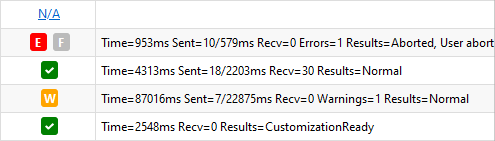
- Sync Stats
- Shows the most important statistics of the last sync.

Check Lock if you want to lock the application on a particular device. Locked application does not start.
Check Wipe if you want to delete the local database on a device, including server URL and user credentials.
Check Full Sync if you want to ensure that the next synchronization of that device will be a full synchronization. This checkbox will be disabled automatically after full synchronization finishes. What will happen is that the user changes will be uploaded, local Mobile CRM app database will be deleted and initial, full synchronization will be performed. If there are unsynchronized changes or Sync Errors, i.e., synchronization conflicts waiting for resolving, Force Full Sync will not be performed until these conflicts are resolved.
- In some situations, for example, if there's an error in the app project, or when server metadata change without updating the app project, it can happen that local data cannot be uploaded. In these cases, you can check Full Sync and then click Force and Discard Device Changes to ignore local changes completely.
If there is a permission change on user’s security role, this change will be applied only with full synchronization. The easiest way to get these changes applied, is to use the Force Full Sync for all devices that users with the updated security role are using.
| Note | With Android and iOS platforms, the push notifications are used for the Lock and Wipe and the device is Locked or Wiped out immediately (or after application start) when the device connects to the internet. Other platforms require performing synchronization or changing the Security policy. |
Toolbar functions
- New Policy
- Create a new security policy.
- Edit
- When you edit a device, you can select a different security policy, lock, wipe, or force full synchronization.
- When you edit a policy, you can edit its settings.
- Delete
- When you delete a device, the device is assigned the default policy when the device next synchronizes with the server.
- When you delete a security policy, you need to assign devices to another policy. Security policy cannot be deleted if there are devices assigned to it.
- Export
- Download a .csv file with the list of devices.
- Sync Log
- Display a list of synchronization logs of a device.
Security policy

A security policy is a set of properties that are applied to all devices for which the policy is set.
Security policy properties are in these groups:
- Application Session
- Require Login after X minutes of inactivity – After defined time in minutes, the Mobile CRM application asks for the password to continue using it.
- Check Security Policy
- At Application Login – Mobile CRM application checks whether there is a change in the security policy at the application login. Login is performed either at the start of the application or if user enters a password to log in to the application.
- Every X Hours – Security Policy is checked periodically after defined time in hours.
| Note | If none of these options are used, the policy is downloaded only at synchronization. |
- Lock Application
- Lock Application – If this option is enabled, all devices under this policy will be locked and the application cannot be used unless the device has a different policy assigned.
- If no server contact after X hours – Application is locked if it did not connect to the CRM server either in matter of checking the policy or synchronization, or online mode access. The application can be unlocked by entering the correct password. Also, internet access is required in this case.
- During non-business hours – Application is locked if the current time is outside of the given interval.
- Invalid password X times – If a wrong login password is entered for a specified number of times, the Mobile CRM application locks up (Admin lock) and can be unlocked in the Woodford’s Security list of devices. The locked device will have a Lock checkbox enabled and needs to be unchecked.
- Wipe Application
- Wipe Application – If this option is enabled, all devices under this policy are wiped, even if the user tries to synchronize the Mobile CRM with the server.
- If no server contact after X hours – The device’s local Mobile CRM database is wiped out if the application does not contact server after the specified number of hours.
- Invalid password X times – The device’s local Mobile CRM database is wiped out after entering a wrong password for a specified number of times.
- Migration
- If you are migrating your backend from an on-premises database to the cloud, this function allows your mobile users to switch seamlessly from the old URL to the new one. Mobile users don't have to perform any extra action and the change does not require full sync. Limitations apply, such as:
- Old server database must be physically copied to the new location. Rowversion must stay the same.
- The old and new server (URL) must use OAuth2 mode with the same user identity.
- When, while synchronizing in the configured time frame, a mobile device with this security policy fails to connect to the old server (don't use redirects!), the device automatically tries to connect to the new URL.
- Contact Resco support.
Assign devices to policies
To assign a mobile device to a security policy:
- Select the device and click Edit (or double-click the device).
- Select a suitable security policy from the list and click OK.
Default security policy
When a new device is set to synchronize with user’s server, it is automatically listed under the Default policy. To edit the policy, select the Default row and click Edit. By editing this policy, you define how all devices handle security unless you move them to a custom policy.
Tip: Check policy at app login
Checking security at app login is generally a good idea. For example, you can set the following policy for colleagues that are leaving your company. The app is locked and wiped immediately at startup.

Technical details
Internally, the information about devices and security policies are stored on the CRM server.
- Each device is represented by a record in the resco_mobiledevice entity (Dynamics) or mobiledevice entity (Resco).
- Each security policy is a record in the resco_mobilesecuritypolicy entity (Dynamics) or mobilesecuritypolicy entity (Resco).
Installations with Salesforce store this information in Resco CRM server.